Expense Diary
Expense Diary tells you one number every morning: how much you can safely spend today. It works that out from the money in your accounts, the bills still to pay before payday, the money set aside in jars and the days left. Everything stays on your phone: no account, no bank connection, no server.

 Soon
Soon  Scan to get it
on your phone
See it in action
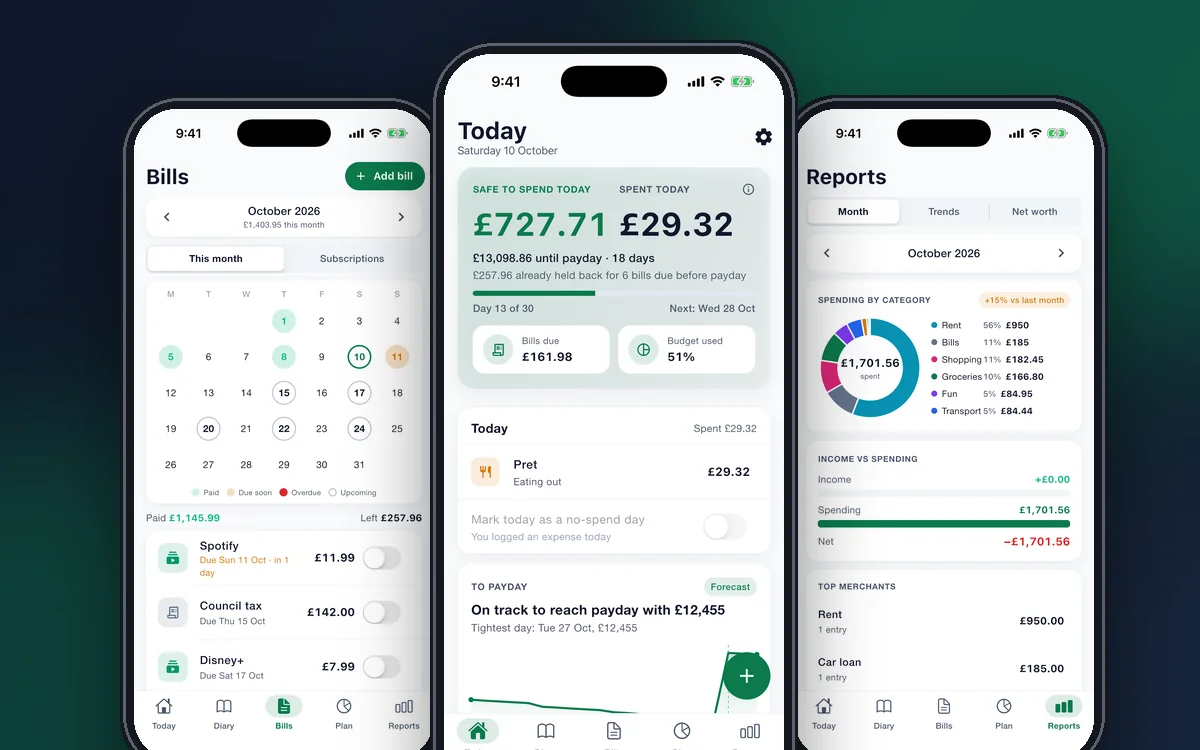
Safe to spend, logging in seconds, receipt scanning, bills, subscriptions, budgets, jars, reports and backup.
What defines it
Every feature
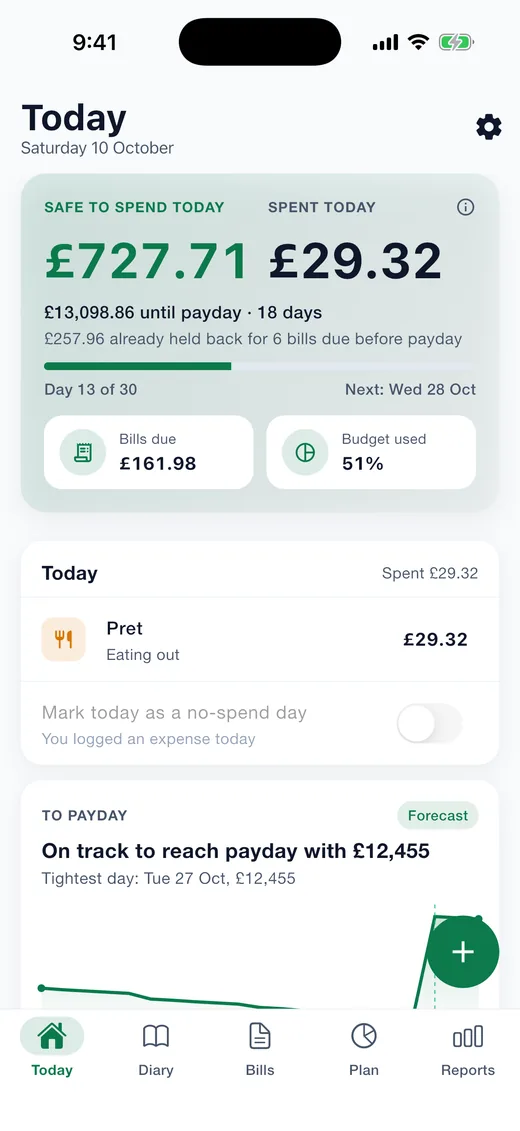
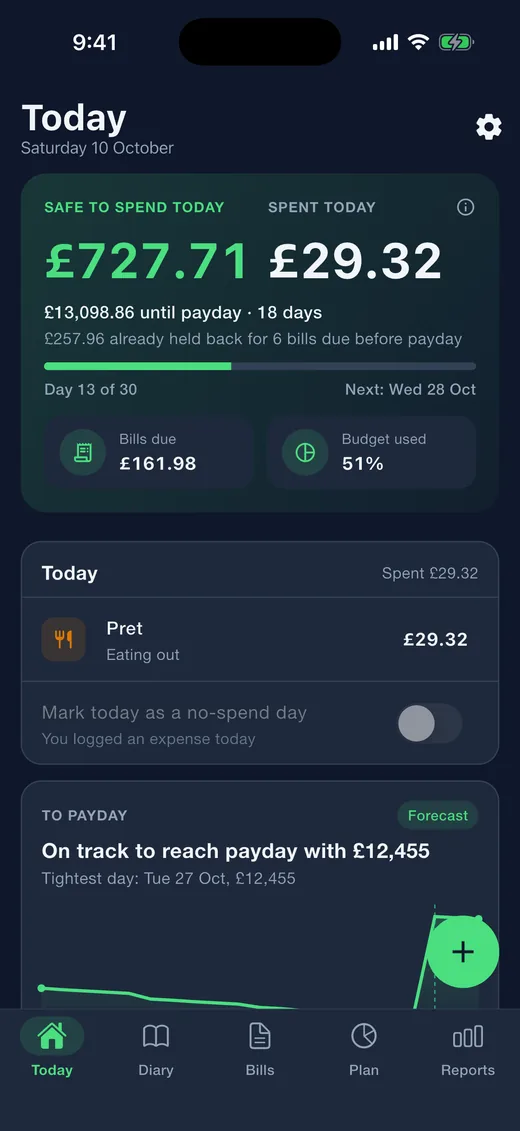
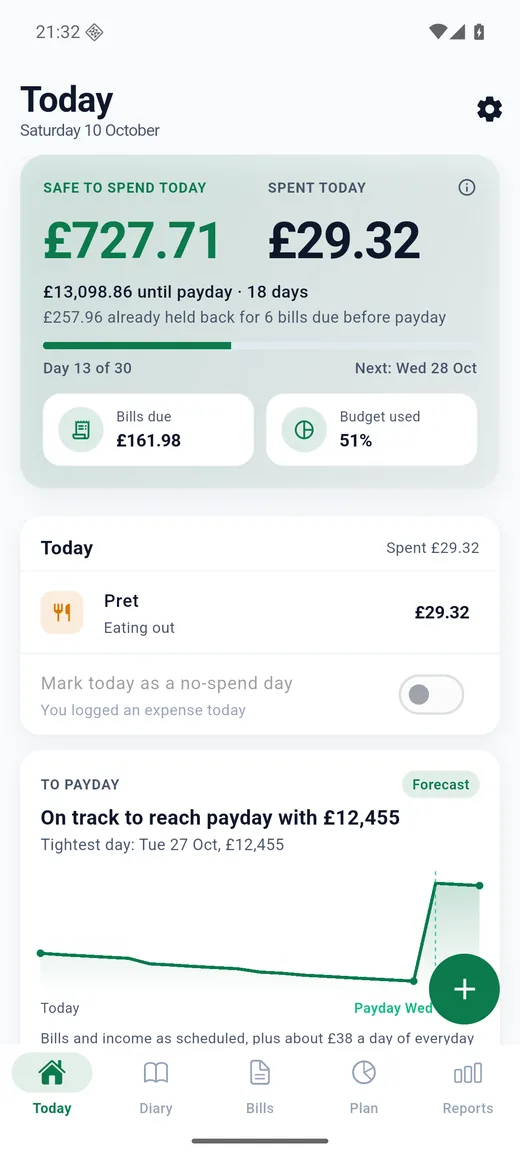
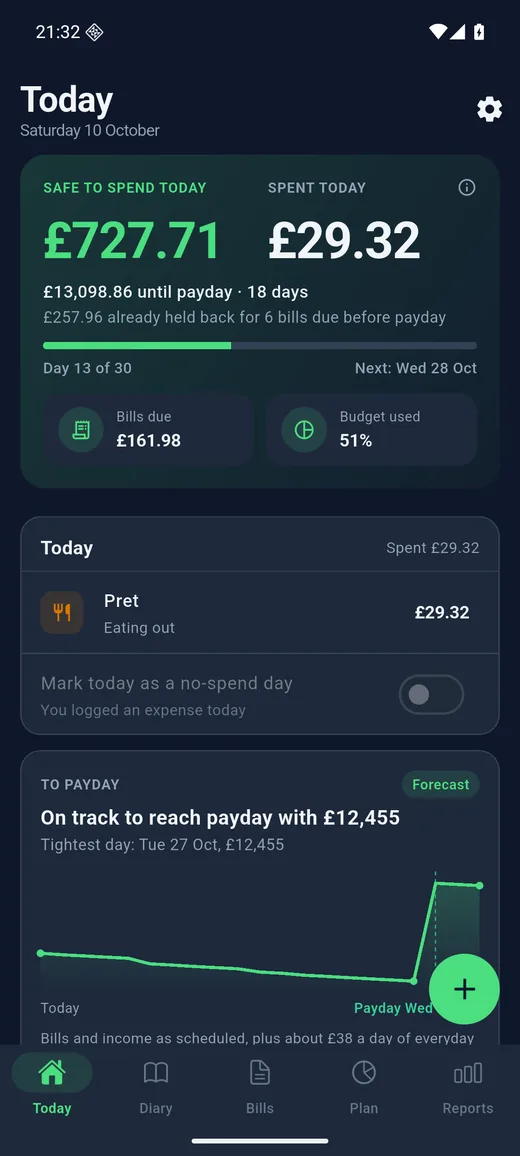
Safe to spend today
The money in your spending accounts, minus the bills still due before payday, minus the money set aside in jars and a buffer you choose, divided by the days left. It sits at the top of the Today screen with the days to payday and how much is already held back for bills, so paying a bill never looks like a drop. Tap the number and it shows its working.
Today looks ahead
A forecast of your balance to payday, day by day, with the tightest day marked. A Worth knowing card lists the things that deserve a glance: a budget that will run out early, a category running above your usual, a subscription that has not been paid for a while. Headline figures beside the safe-to-spend number: net worth, savings rate and the usual month.
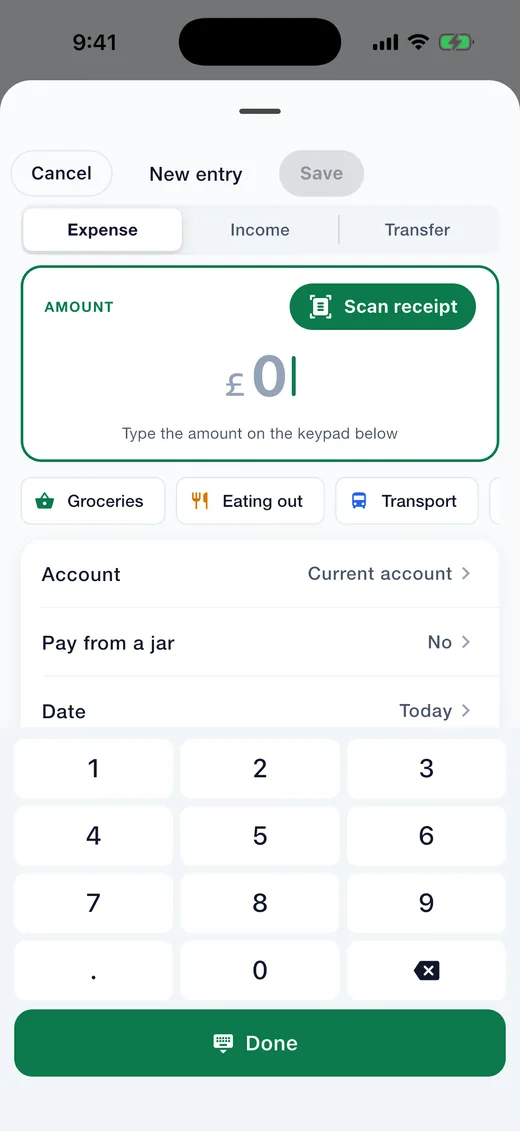
Log an expense in five seconds
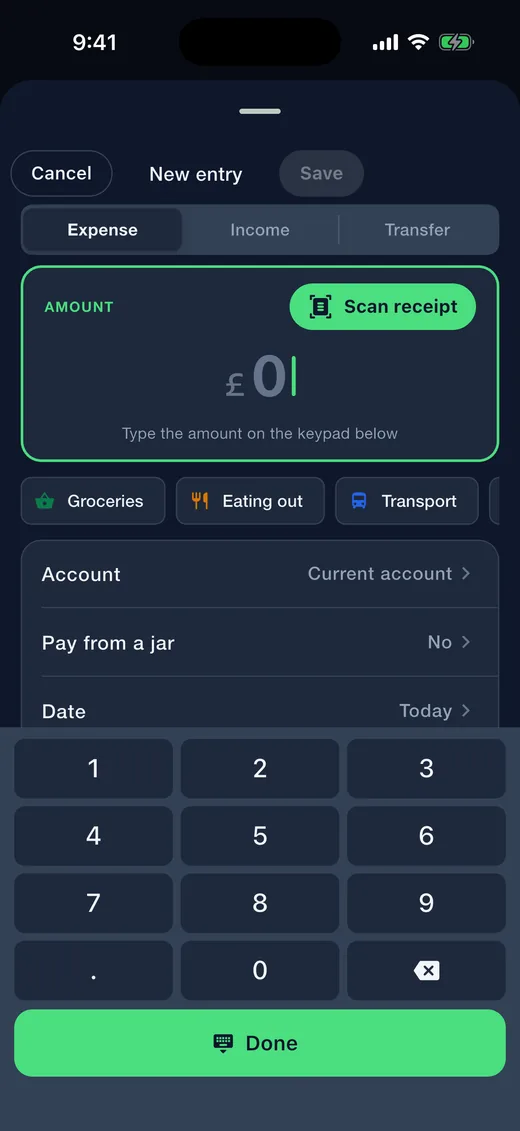
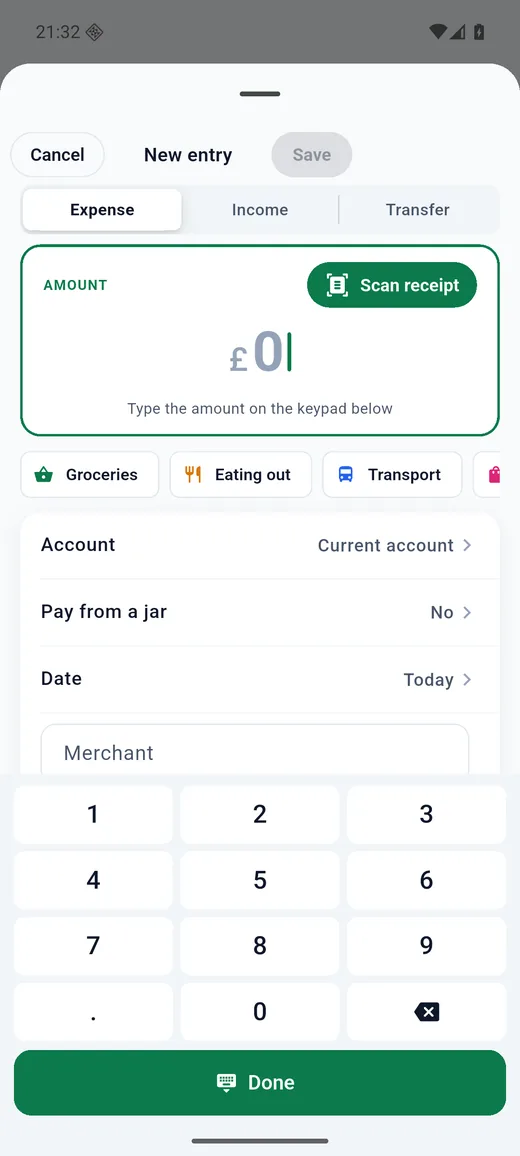
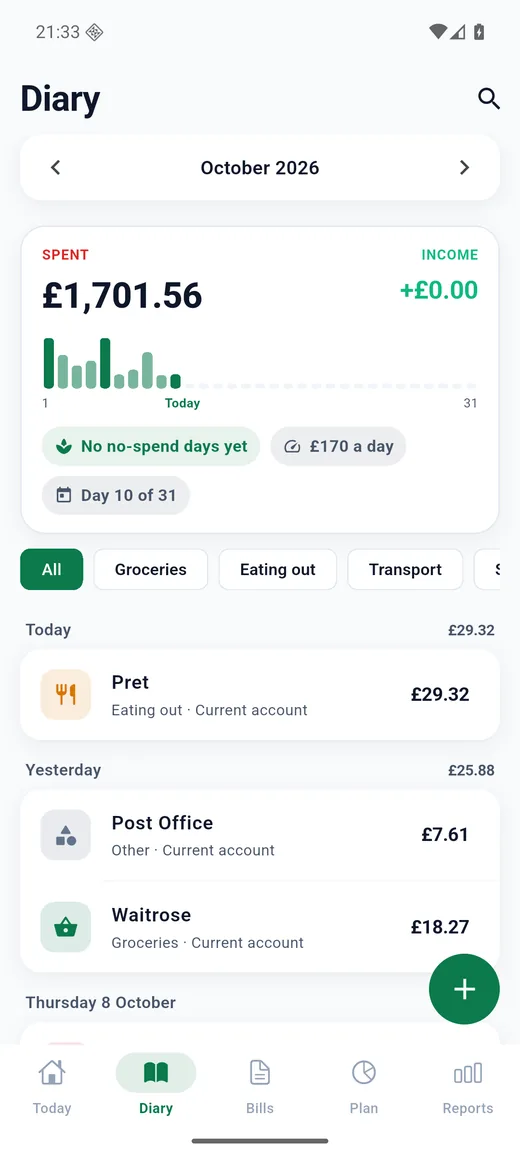
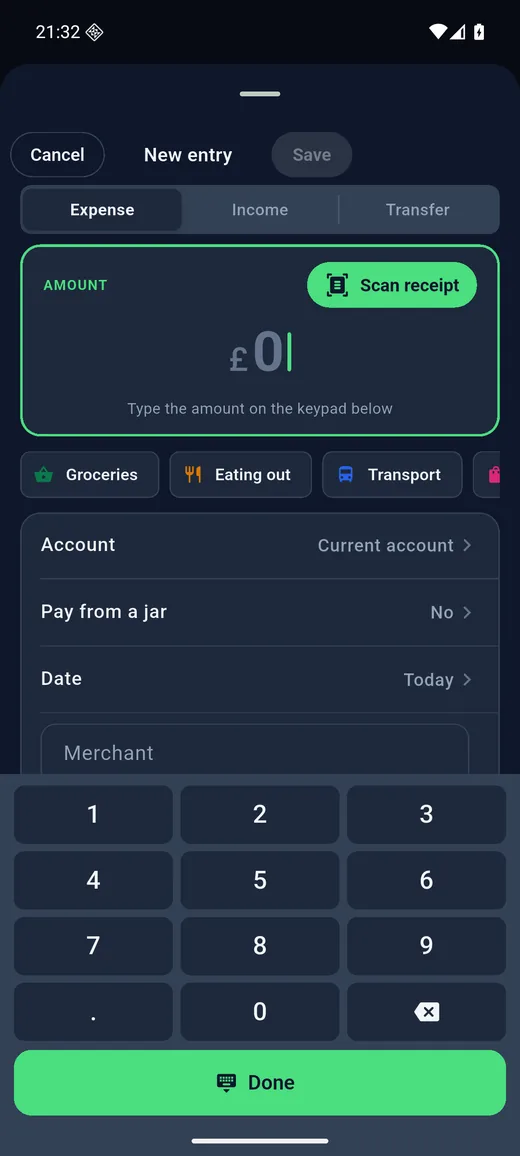
Type the amount, tap a category, done. The app remembers where you shop and files the entry for you next time, offers the amounts you use most often as one-tap chips, and lets you set your own rules such as "anything with Tesco in it is Groceries". Long-press an entry to log it again today or edit it; deleting can be undone.
Scan a receipt
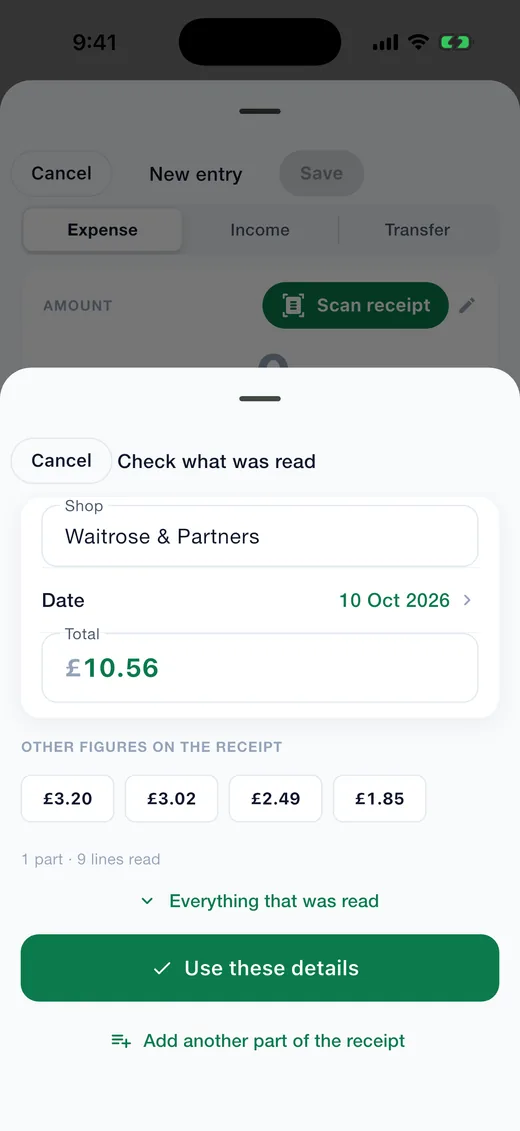
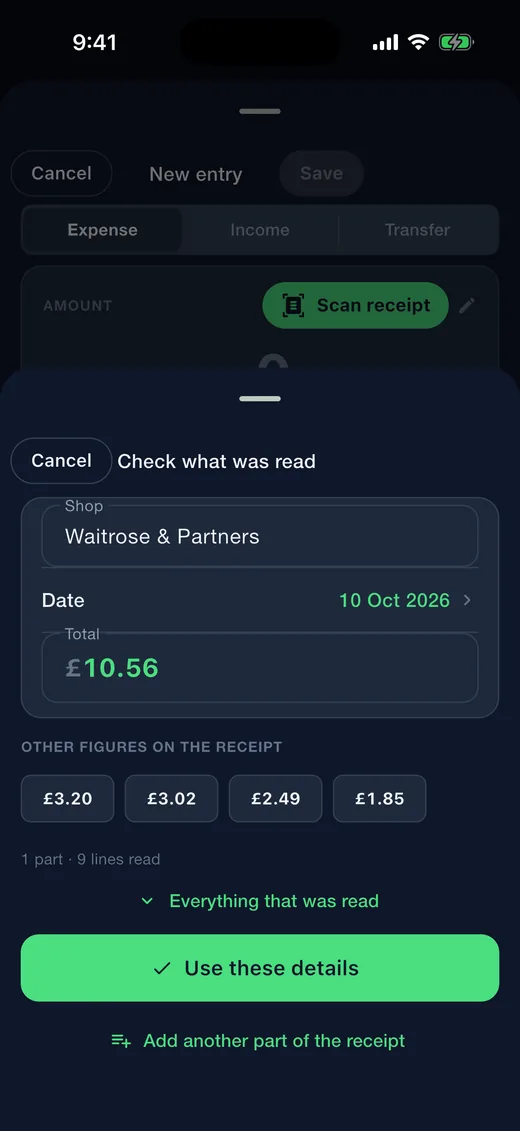
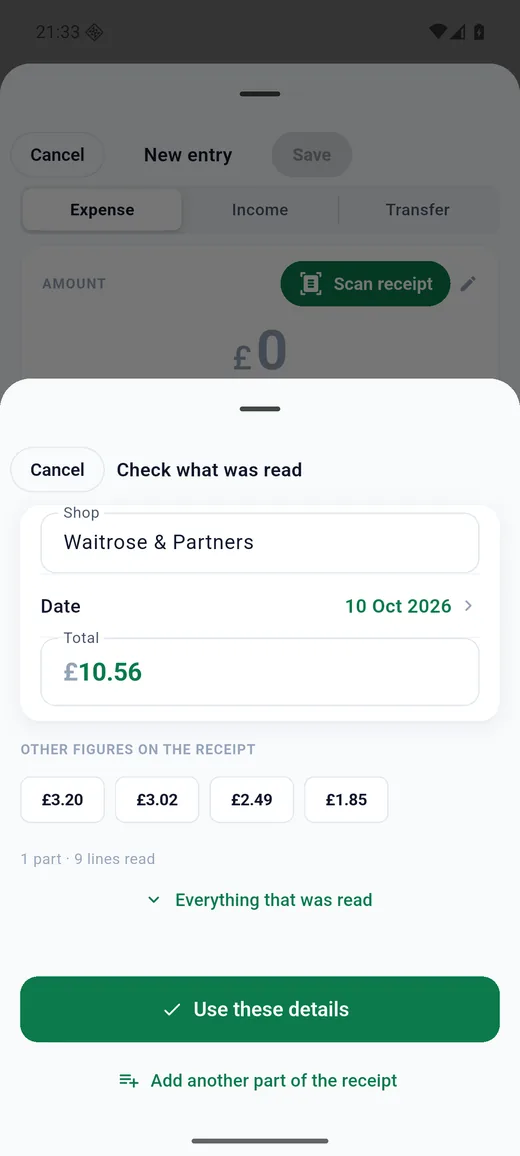
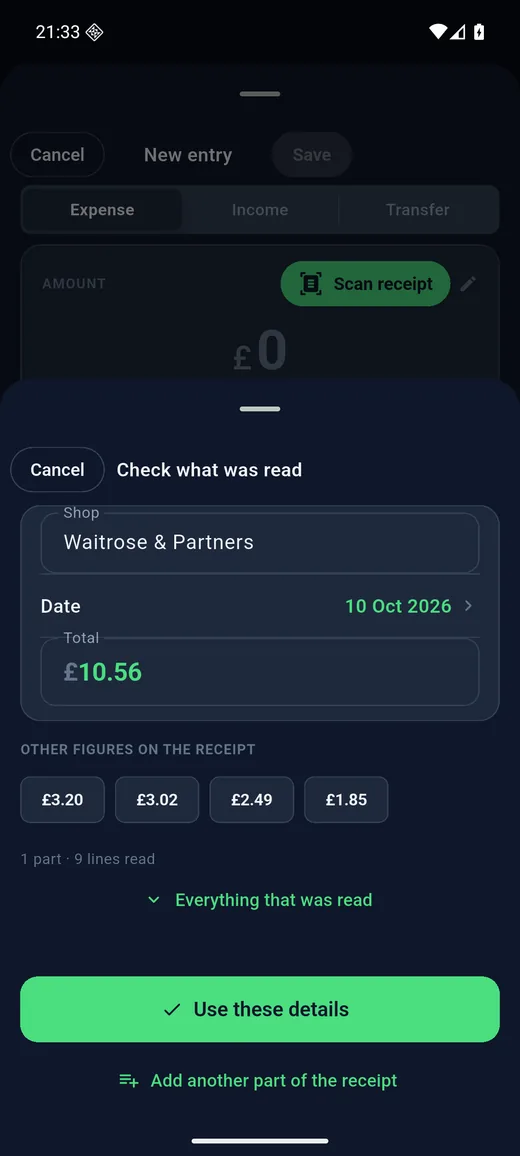
Point the camera at a receipt and the shop, date and total are filled in for you, with the line items ready to split across categories. Reading happens on the phone with Apple Vision or Google ML Kit; the photo is never uploaded. Receipt photos stay attached to the entry and can be browsed by month or searched by date in Reports.
Scan a bank or card statement
Photograph a statement and every row is read into a list you check before anything is added: tick the ones you want, correct a figure, flip in and out, skip the rest. The reader copes with tilted photos, merged headers, running balances and year rollovers, flags rows it is unsure of, spots entries that are already in the diary, and shows what is in the diary but not on the statement.
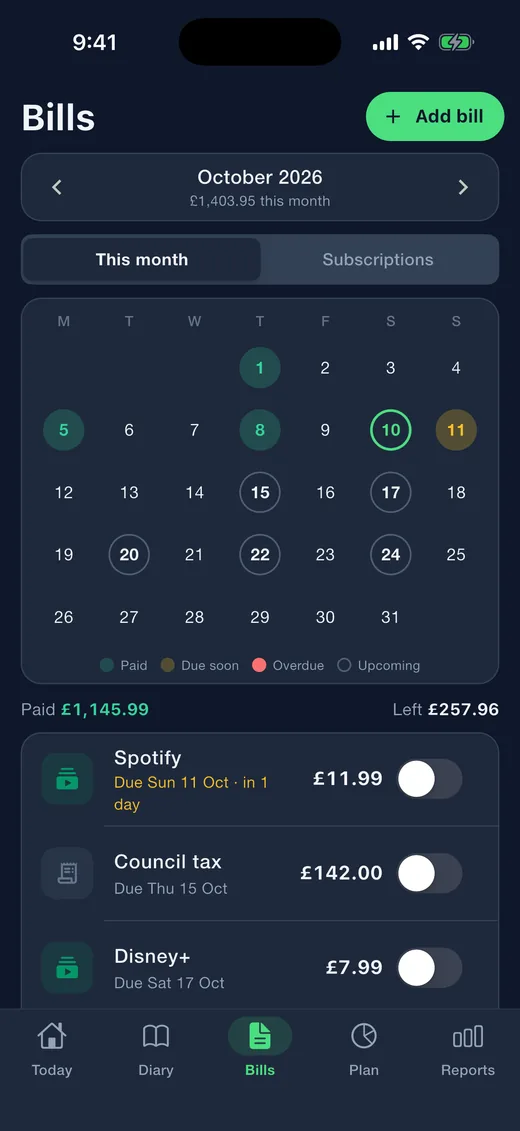
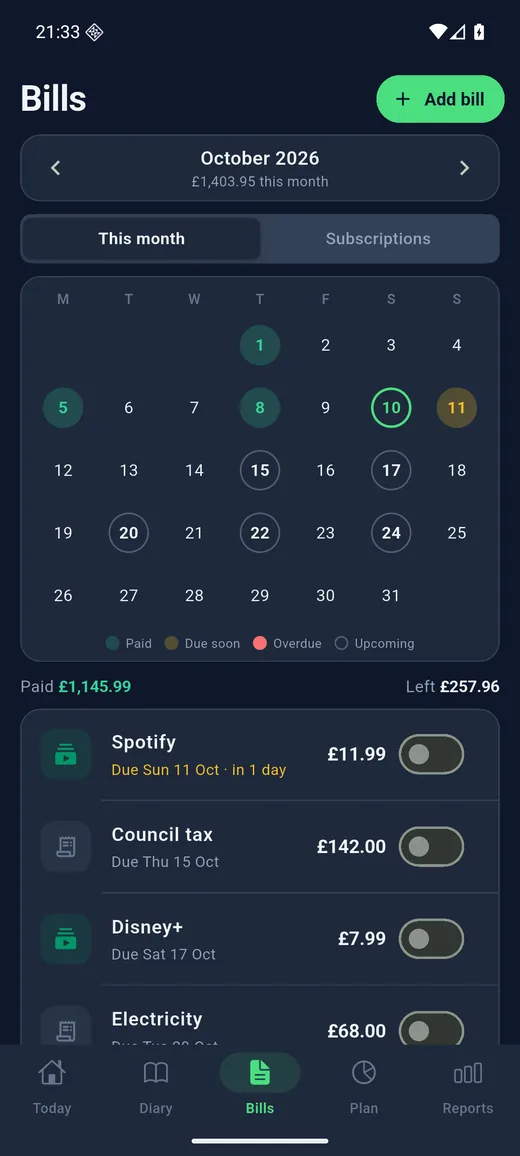
Bills calendar
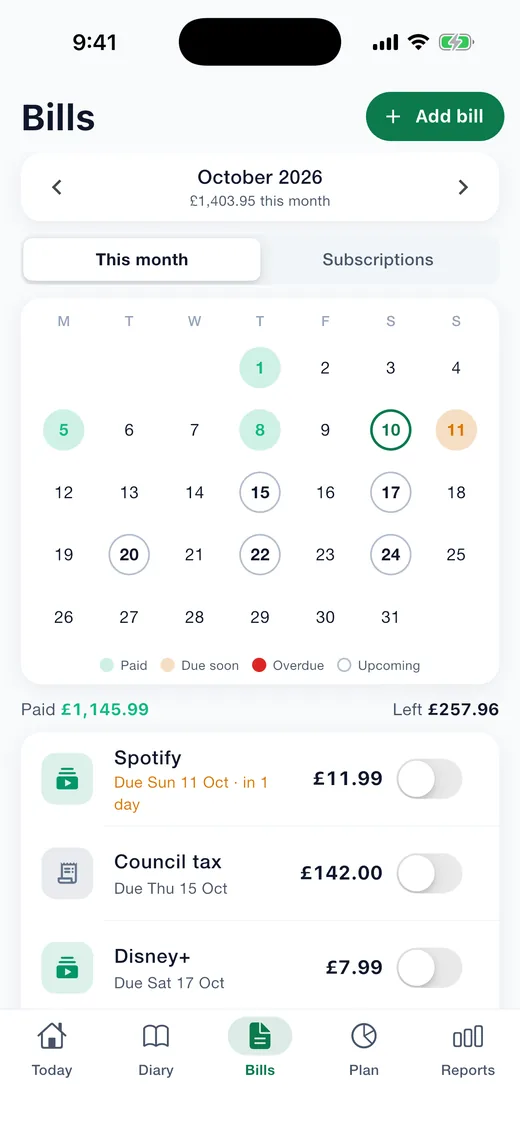
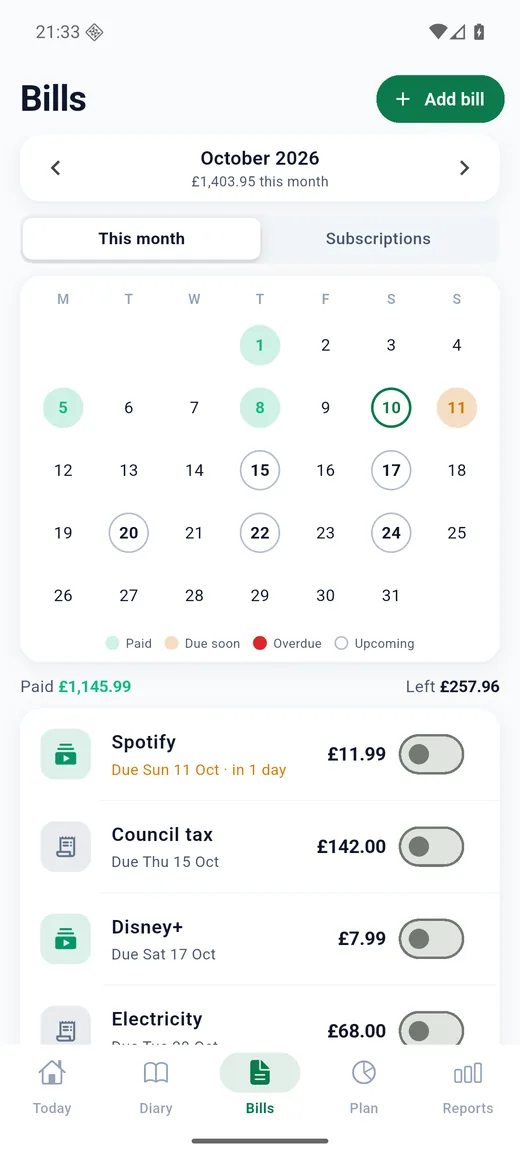
Rent, phone, council tax, subscriptions: add each one once and it appears every month on a calendar, each date coloured for paid, due soon, overdue or upcoming, with a paid switch on every bill. Unpaid bills are held back from the safe-to-spend figure. Reminders arrive the evening before, and a bill can be marked paid straight from the notification. The app also spots hand-entered payments that look like a monthly bill and offers to add them.
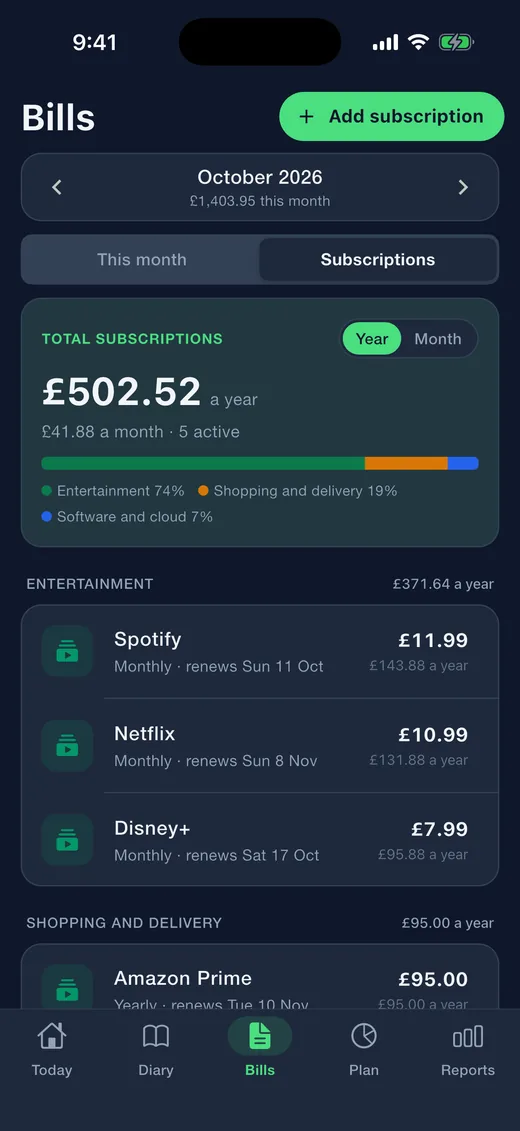
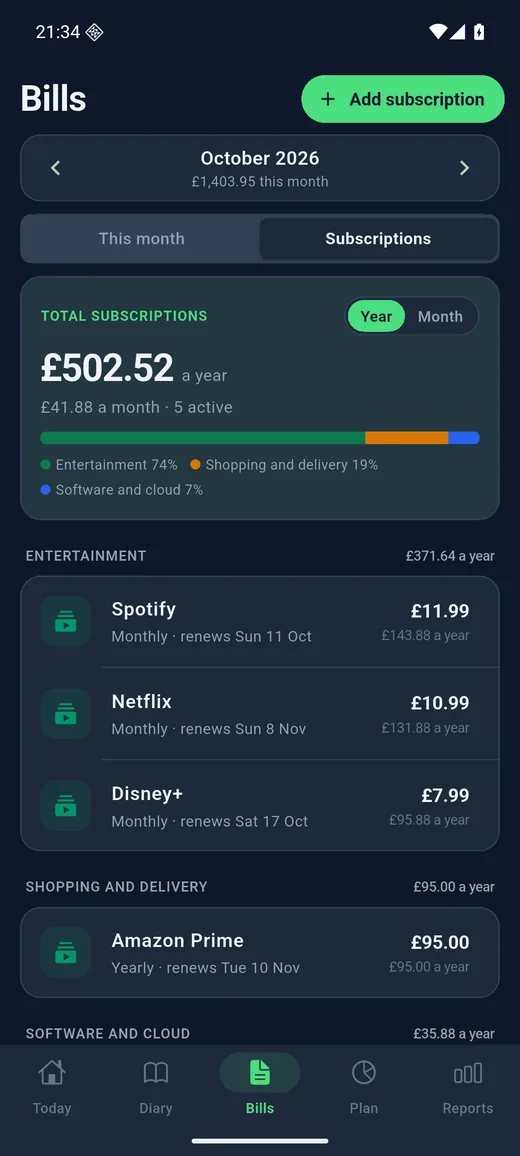
Subscriptions
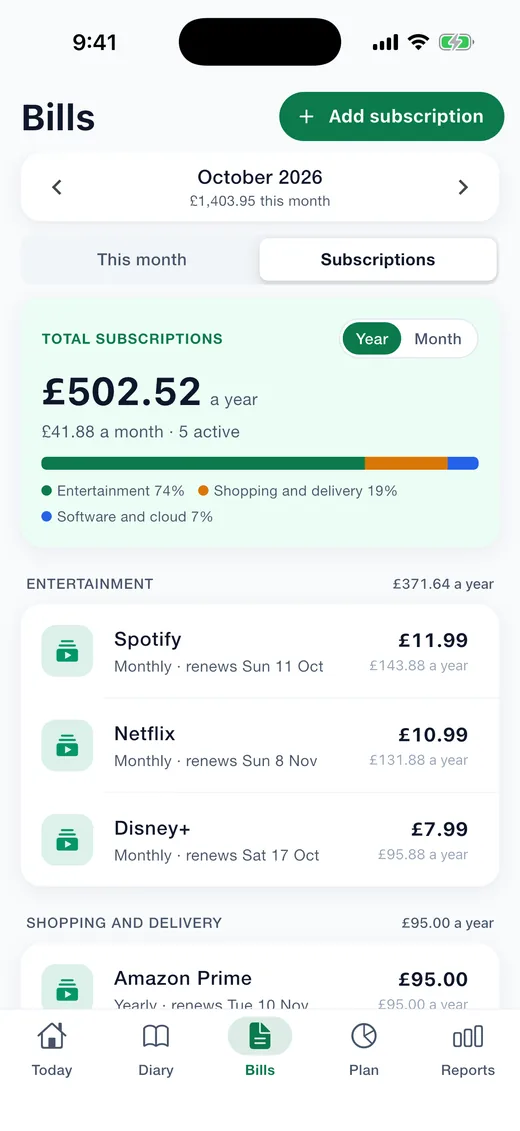
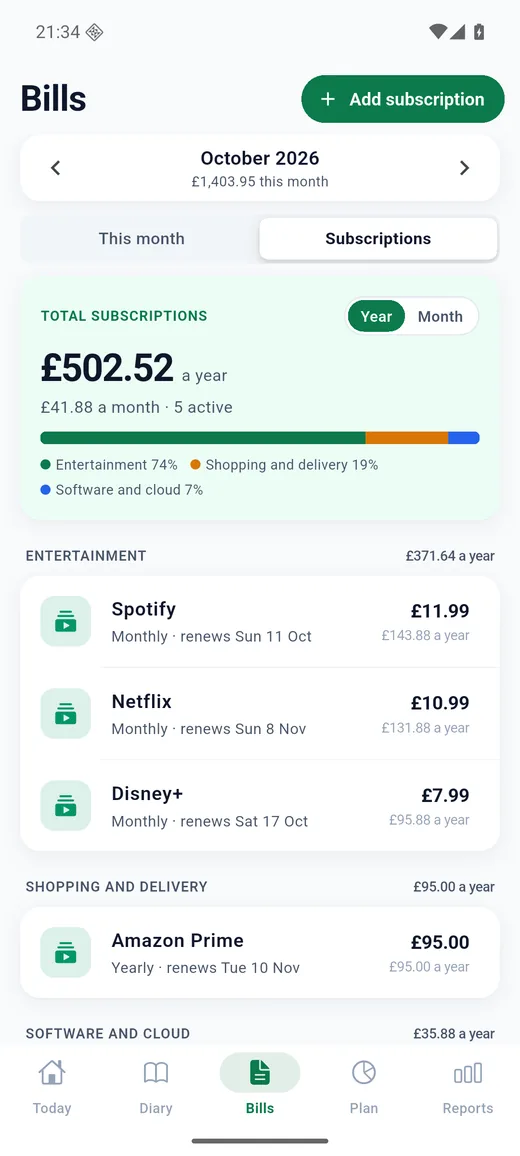
Streaming, software, the gym, added up by the year or by the month and grouped, with the next renewal date and a nudge when one has not been paid for a while.
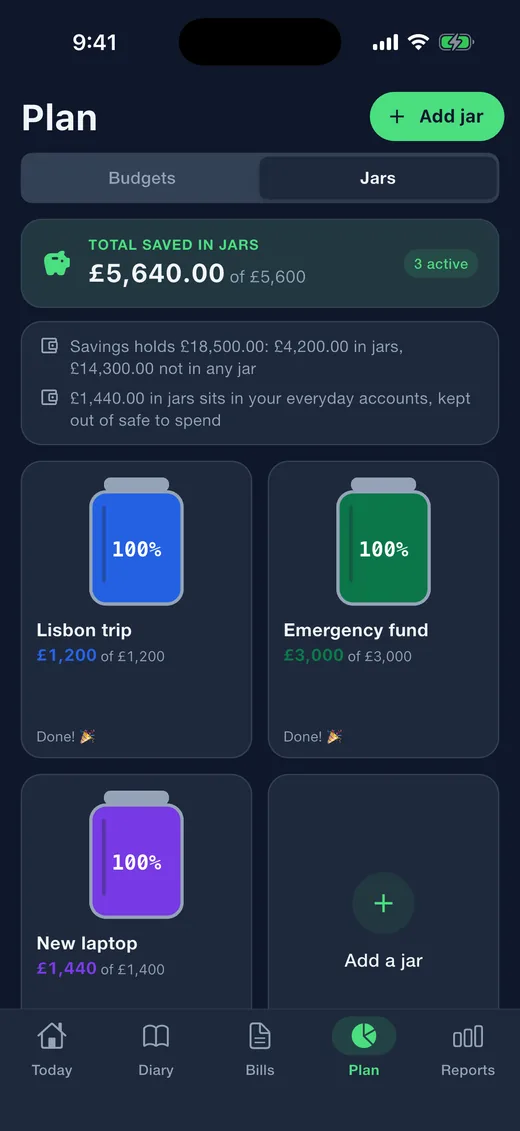
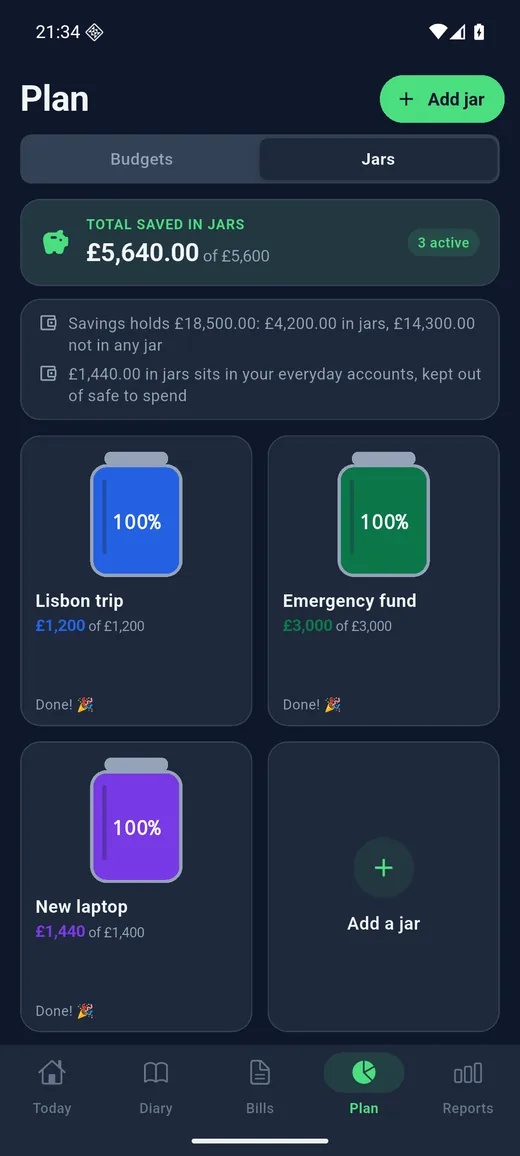
Jars are real pots
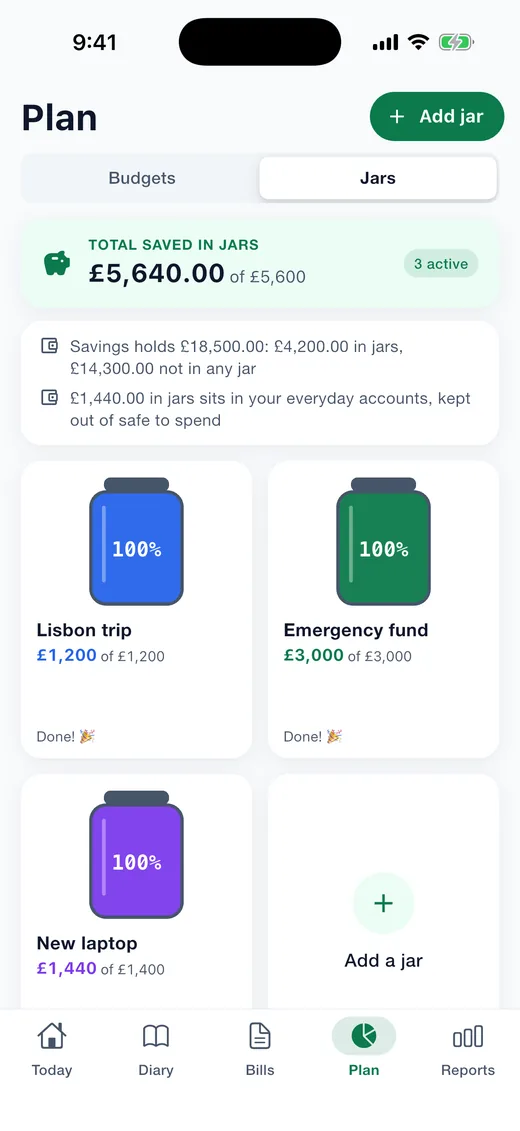
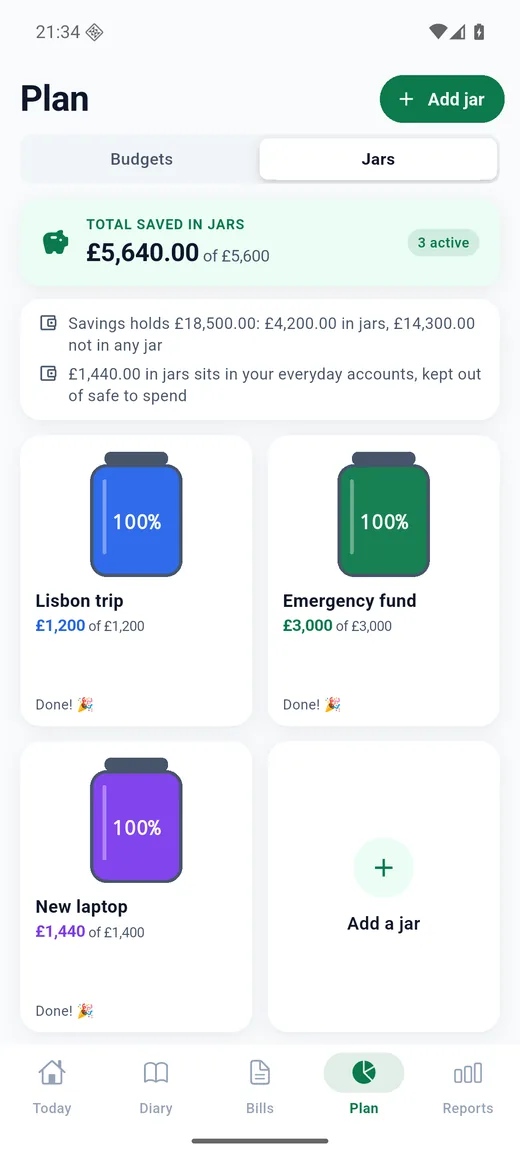
Each goal is a jar that fills as you add money. Money in a jar is kept out of safe to spend, so it is protected without you thinking about it. Pay for something straight from a jar, take money out when plans change, or set an amount to go in on every payday. Every jar shows the account its money sits in, the date you will reach the target at your current pace, and the monthly amount that keeps you on a deadline.
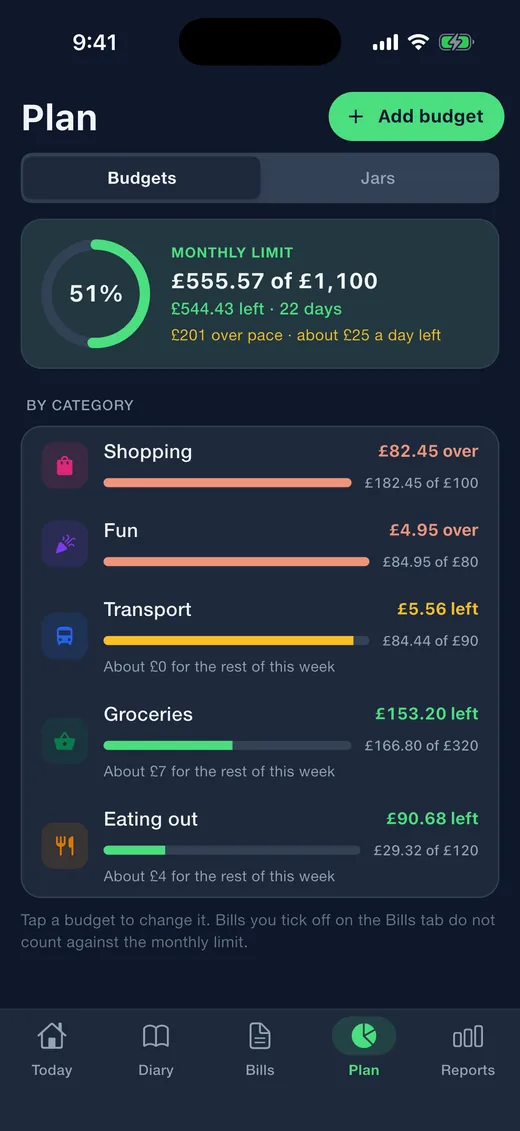
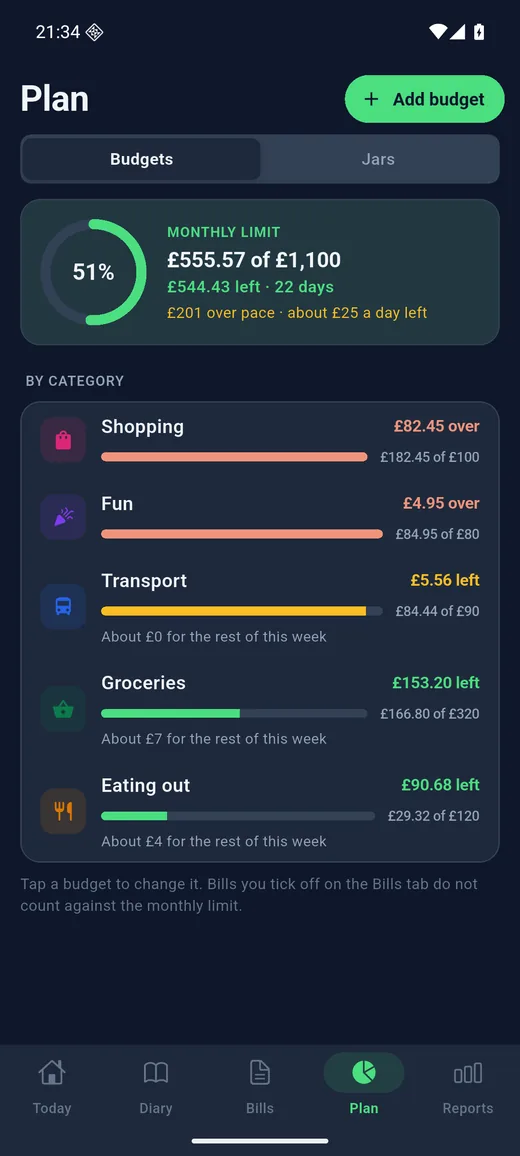
Budgets
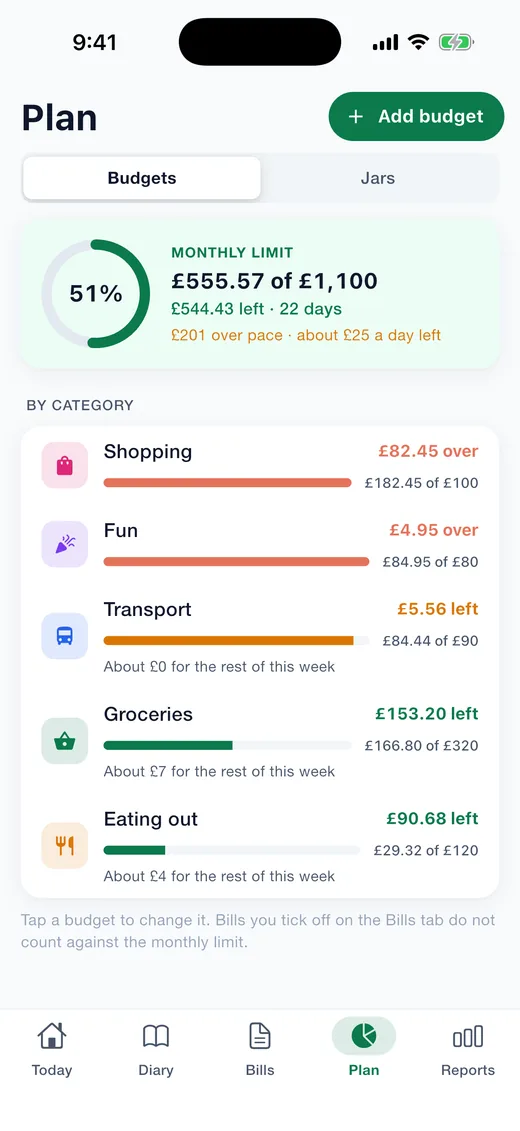
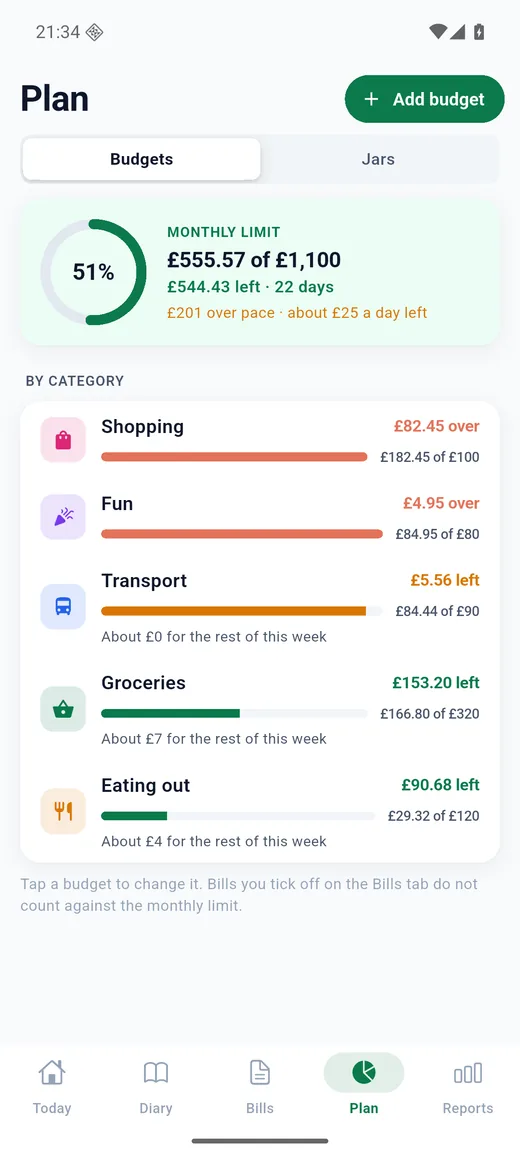
A limit per category or one for the whole month, with a suggested amount from your recent spending, what is left for this week, a pace line for where you should be today, optional rollover of what was left, and a warning before you go over.
No-spend streak
Days with nothing spent are marked on a calendar. Mark today yourself and keep the chain going; bills and transfers can be ignored so a rent payment does not break it.
Reports and statements
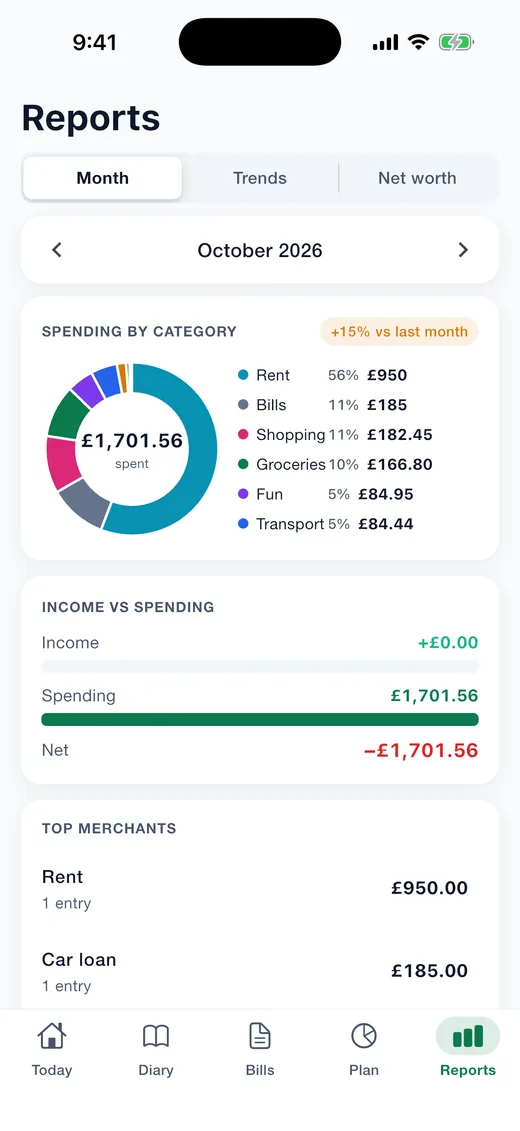
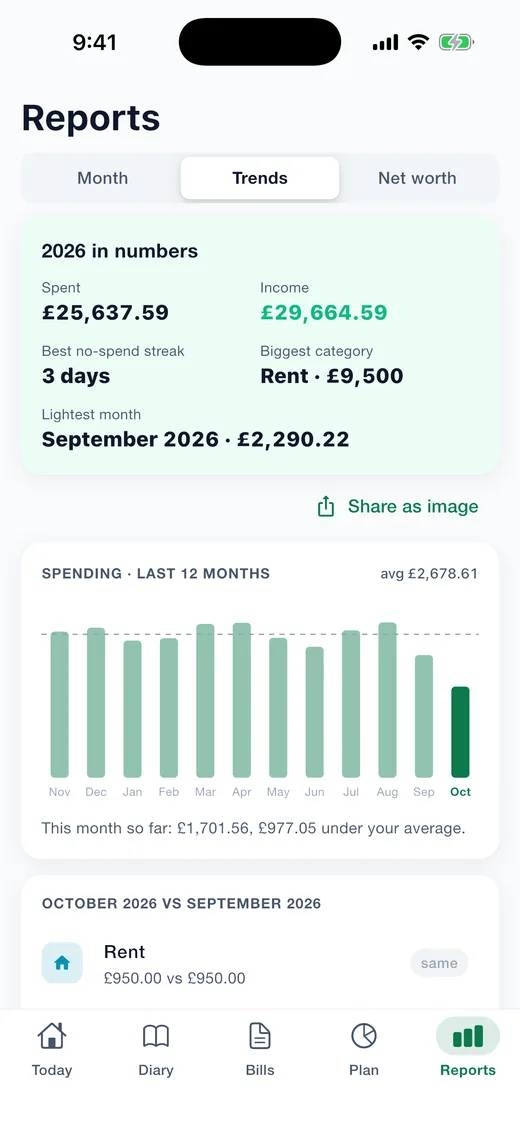
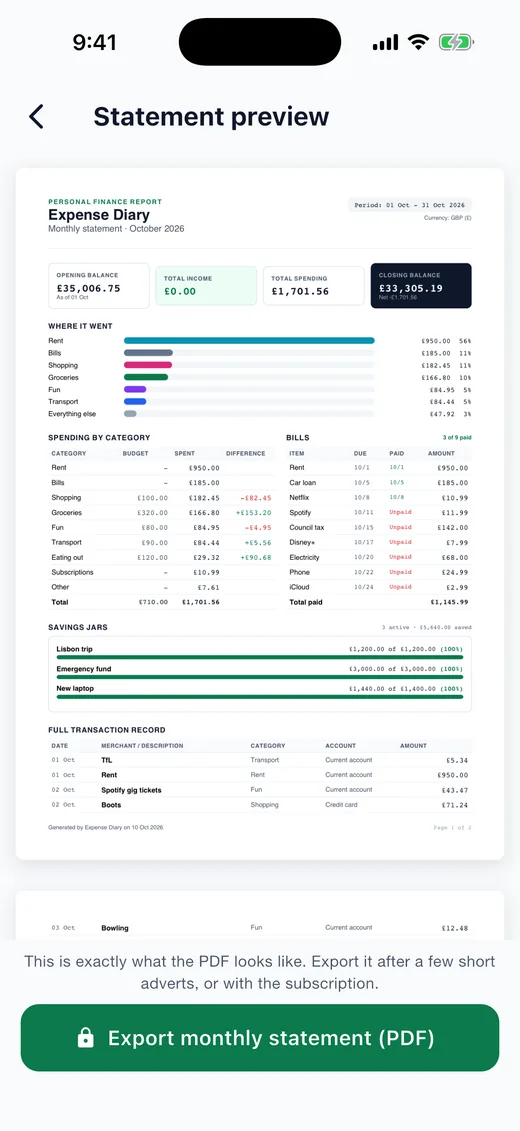
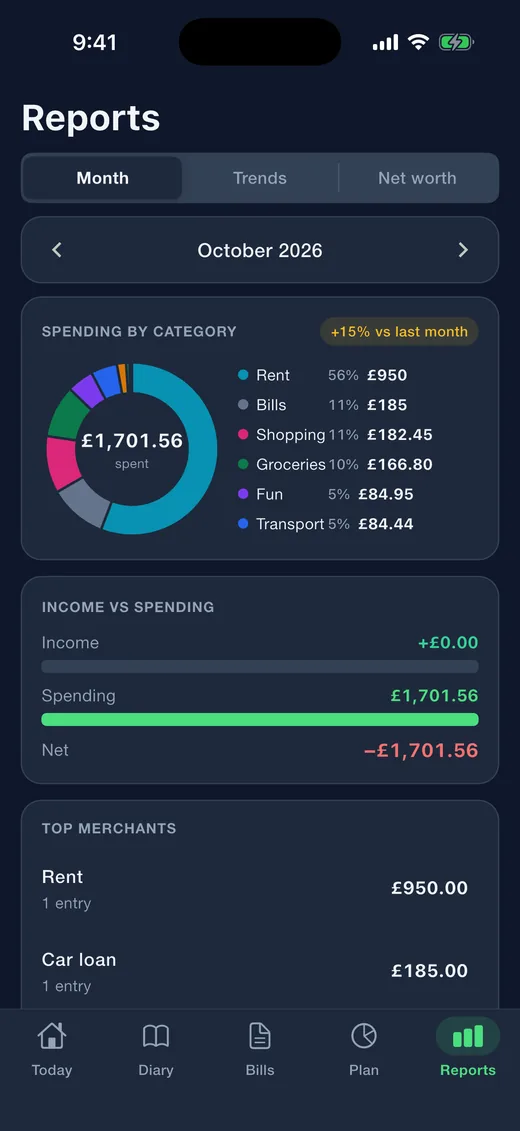
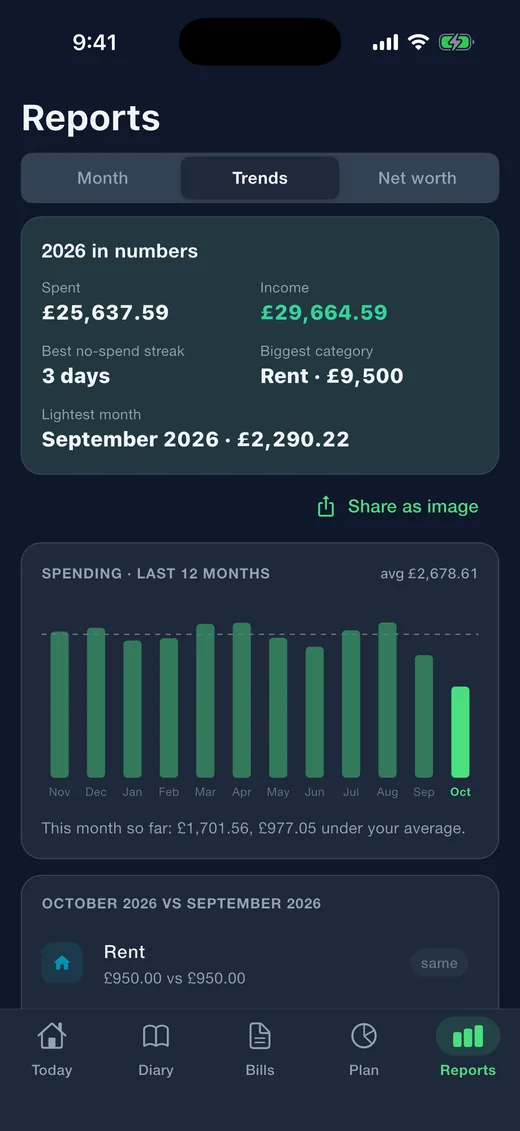
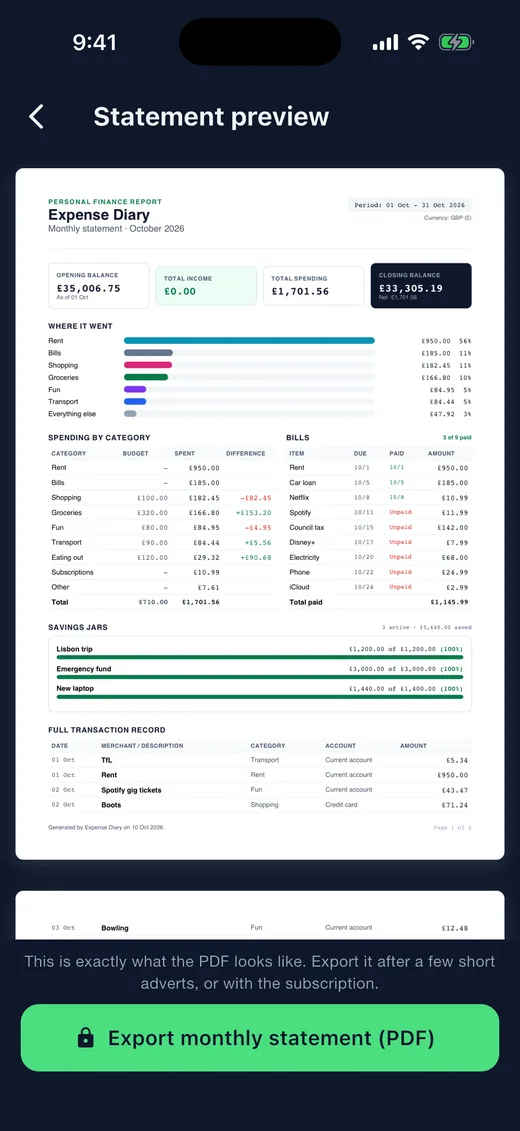
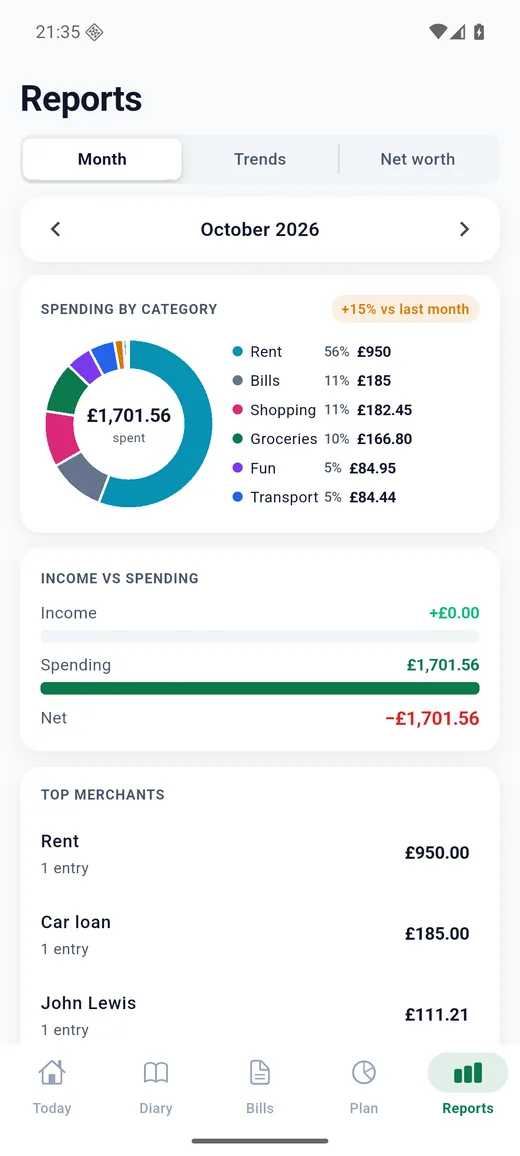
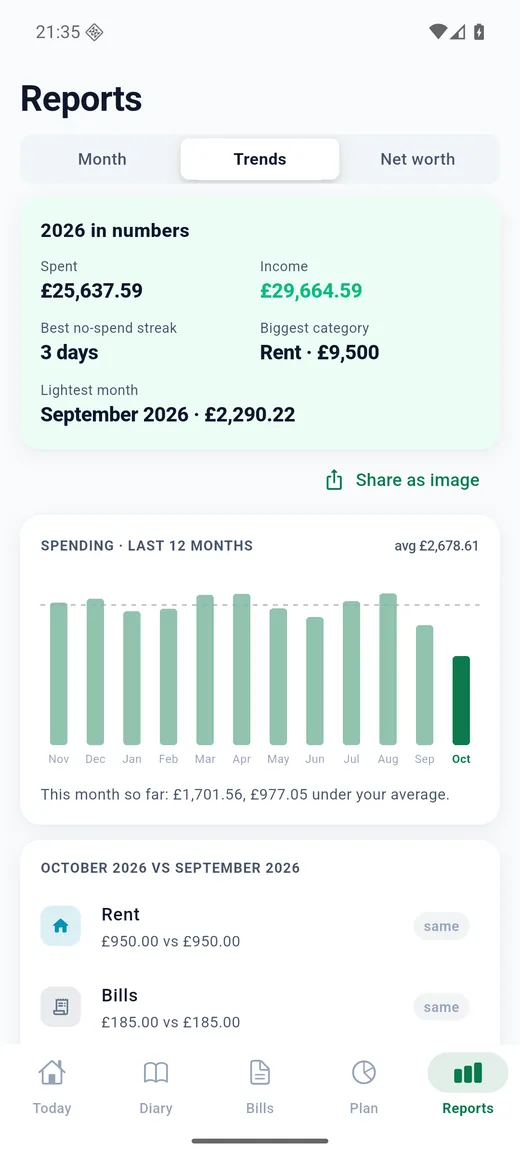
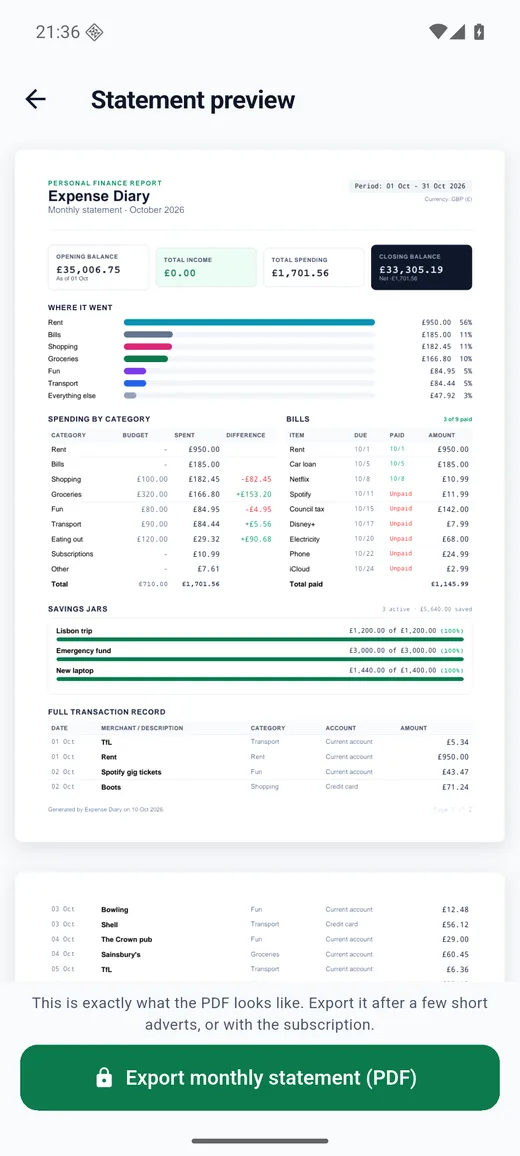
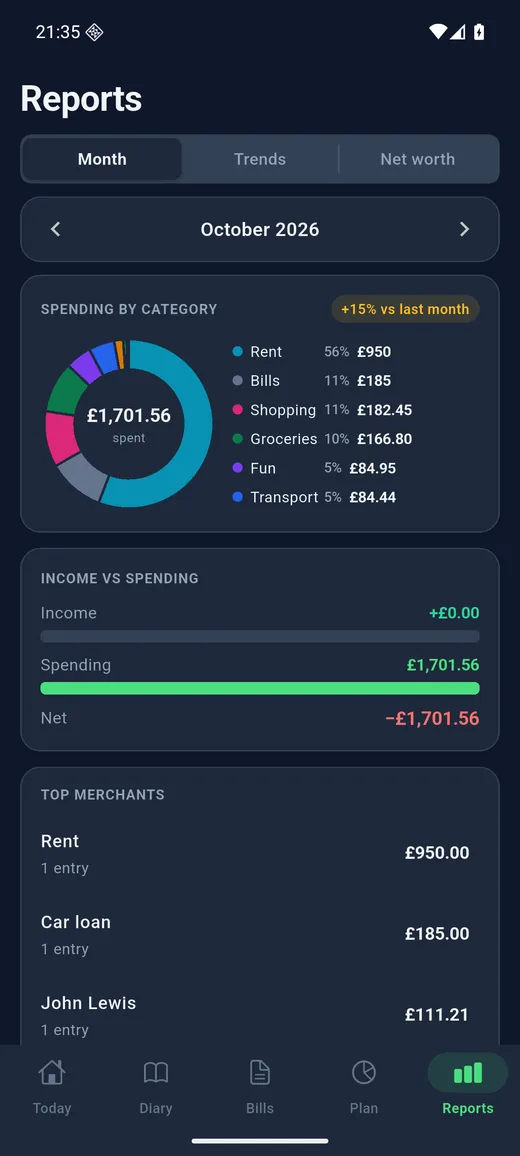
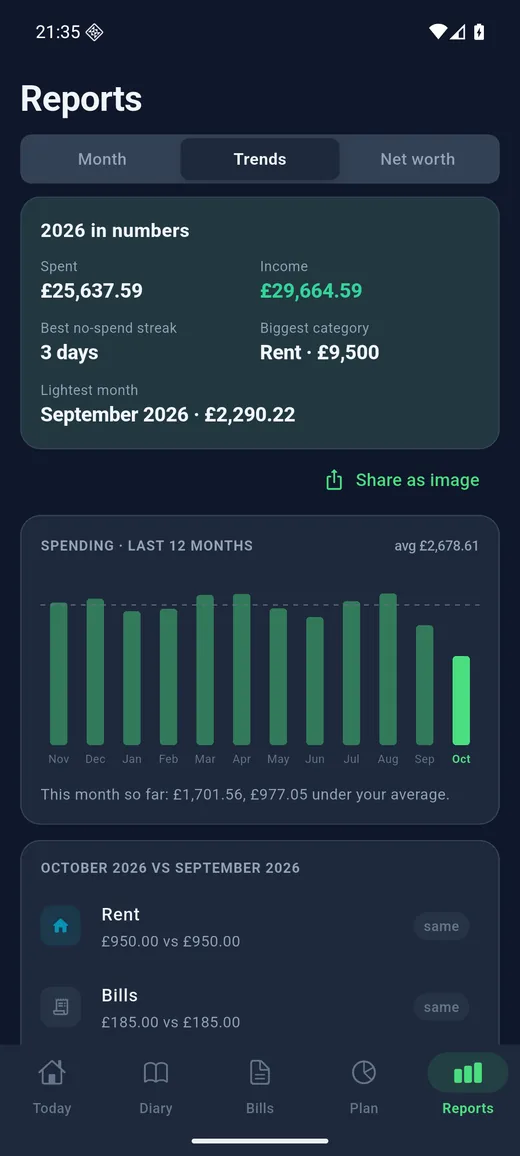
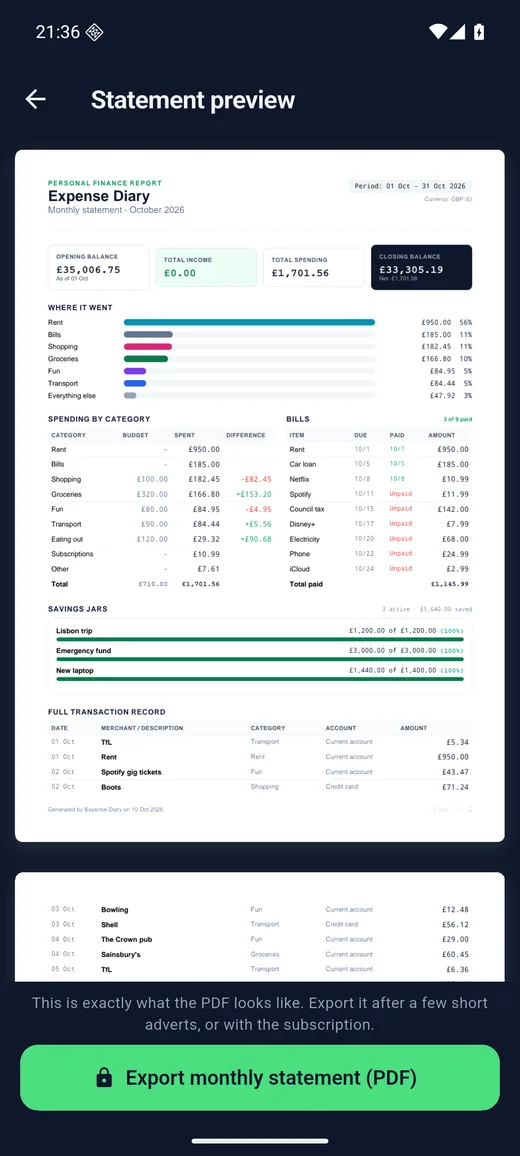
Where the money went this month against last, the trend over a year, top merchants, a page for every shop you use, and a year summary card you can share as an image. Month in review is a short read on how the month went: what changed, the budgets you kept, and anything worth a look. Any month, year or custom range can be viewed as a statement with a Where it went chart, and subscribers can export it as an A4 PDF or CSV; a year adds an at-a-glance summary page.
Net worth
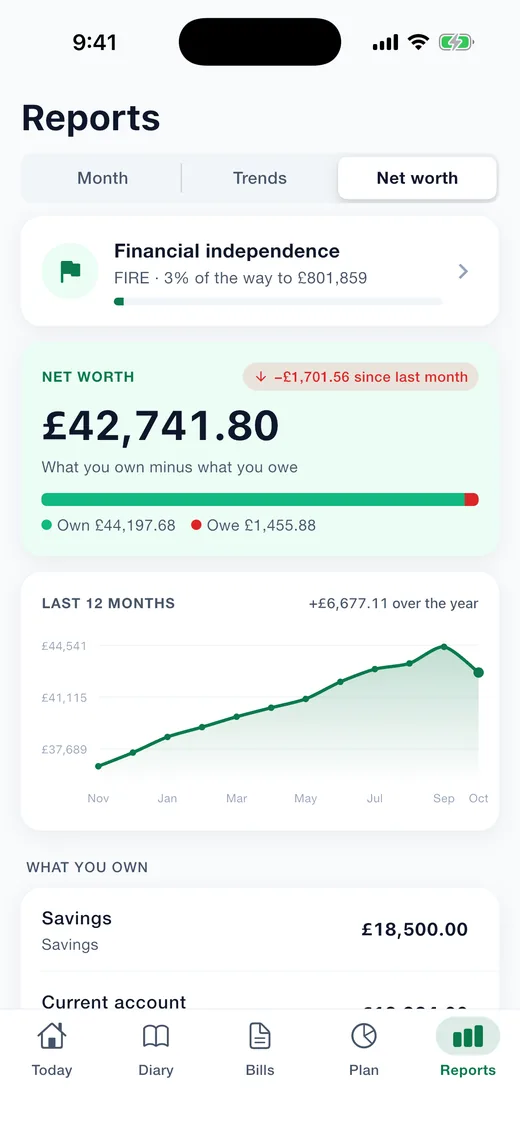
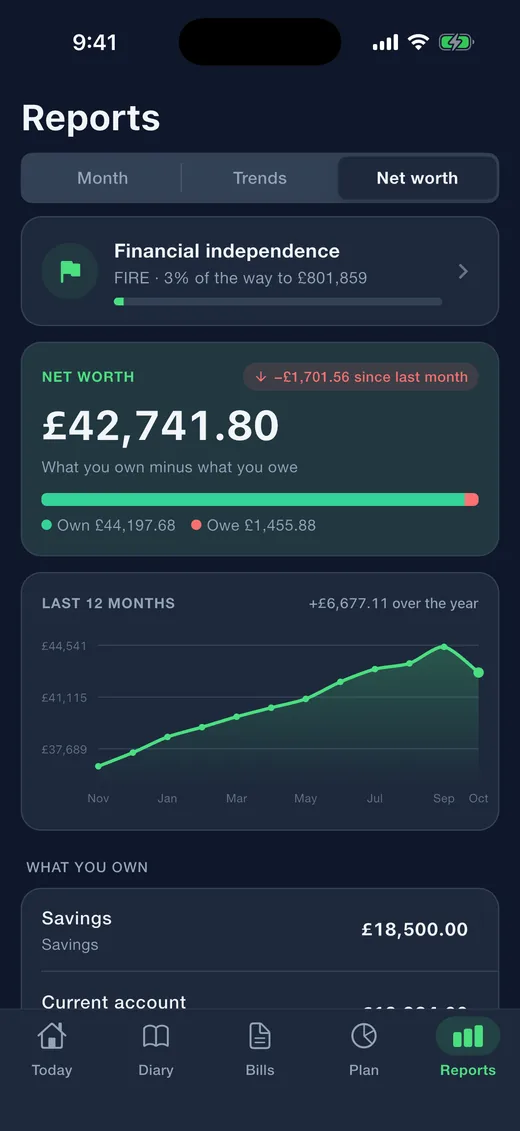
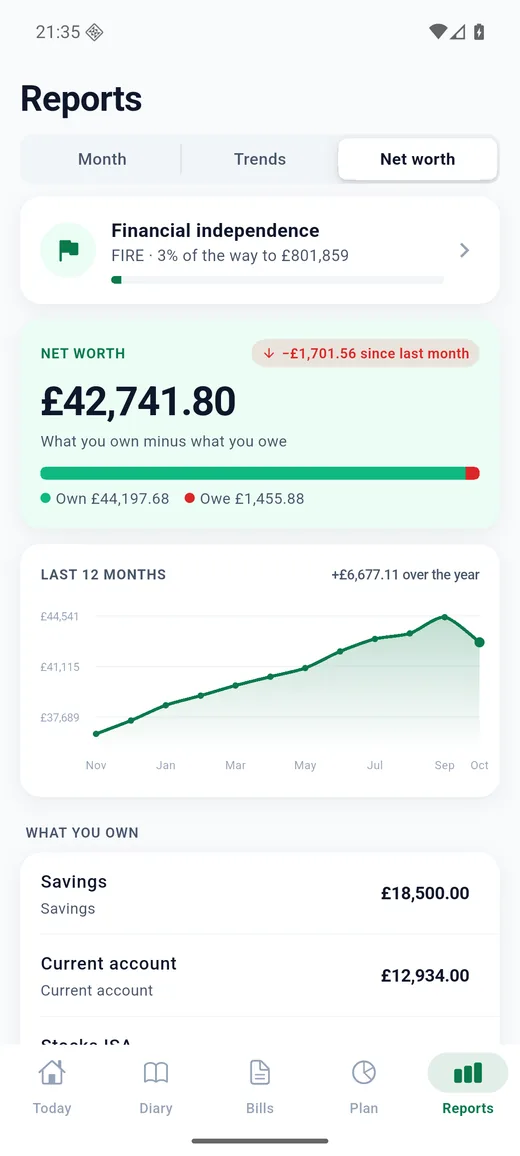
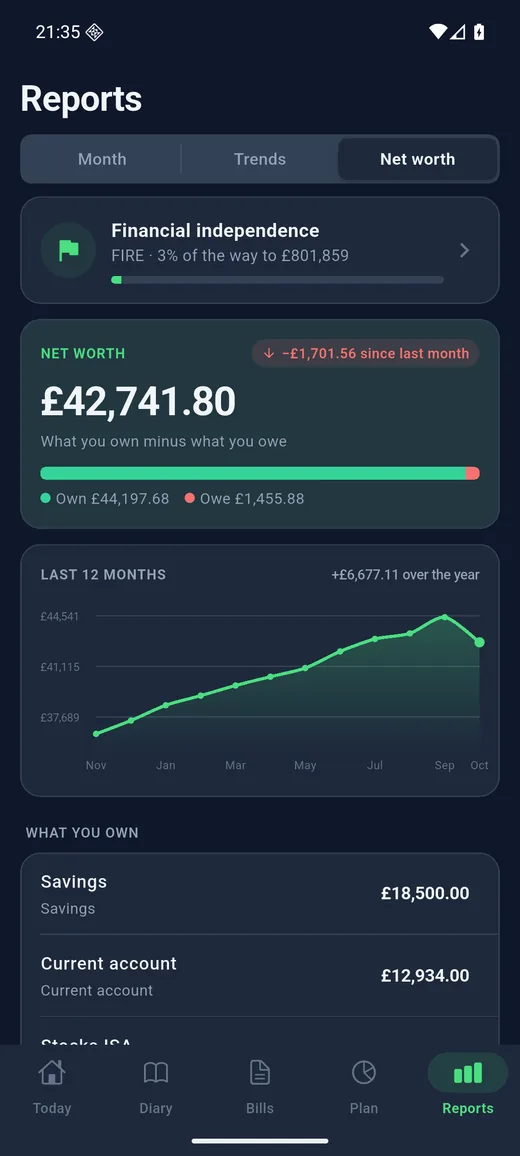
What you own minus what you owe, including a car, property, pension or investments you value yourself, with a monthly series and the change against a year ago.
Financial independence
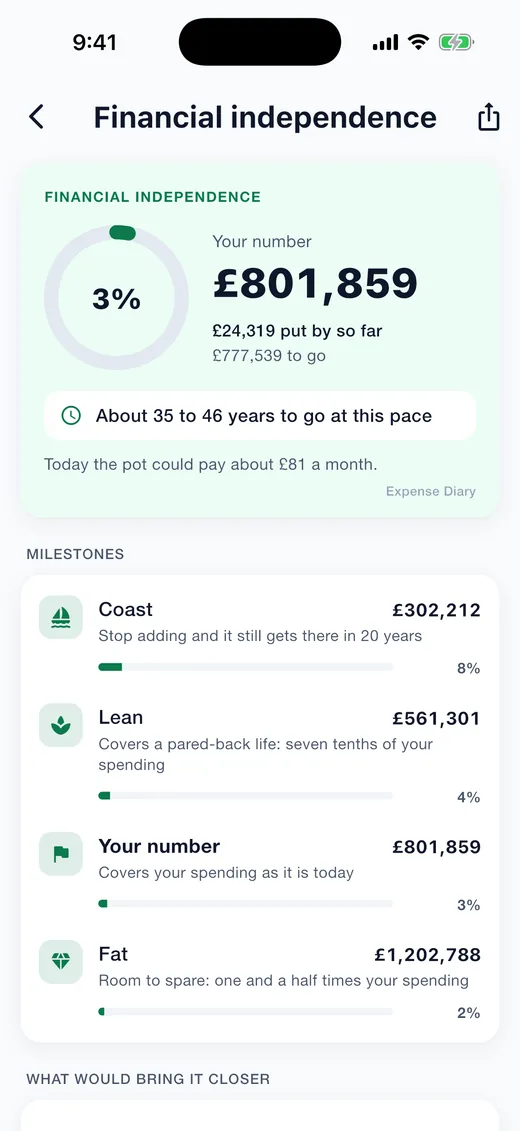
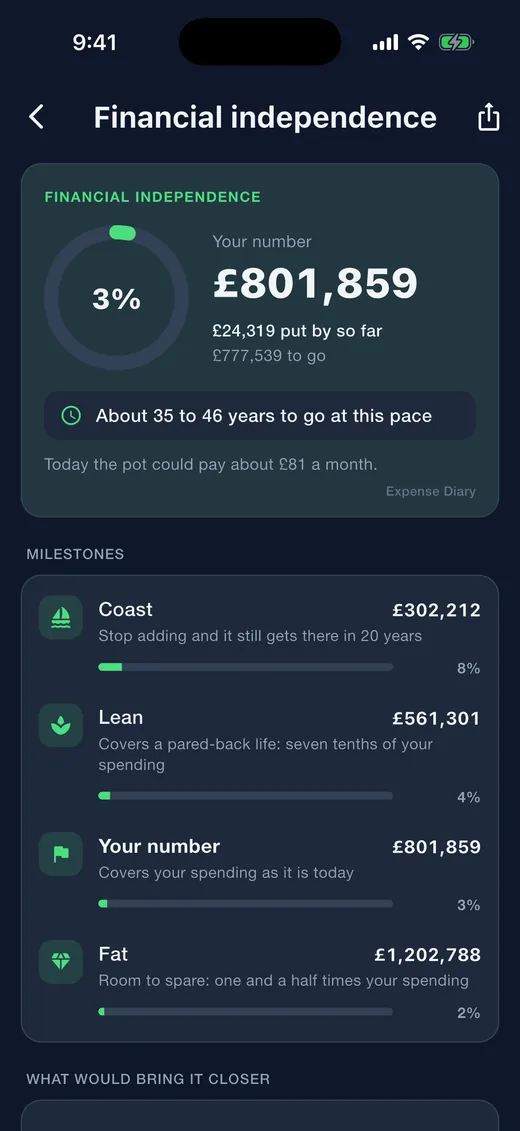
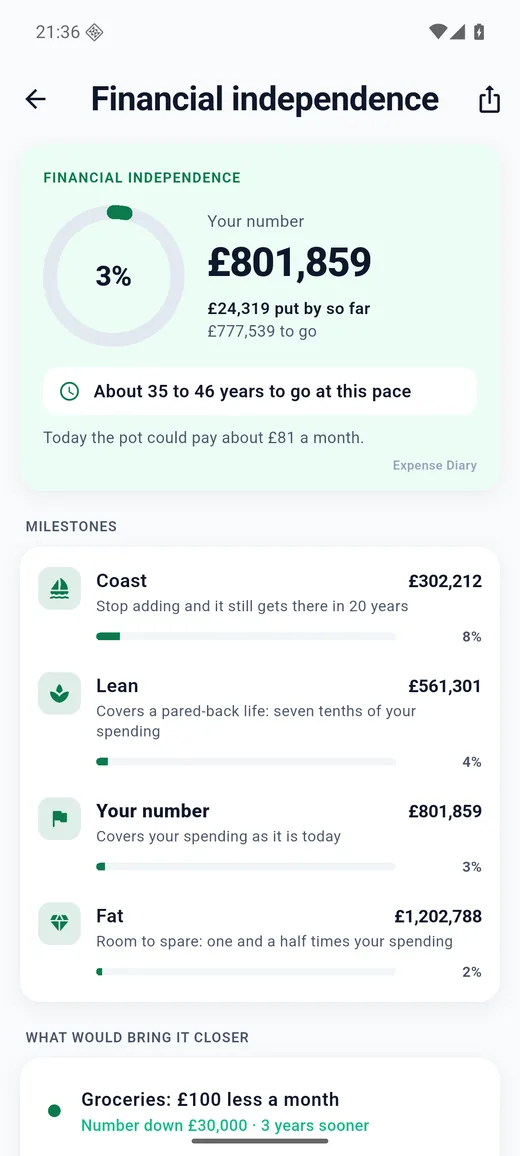
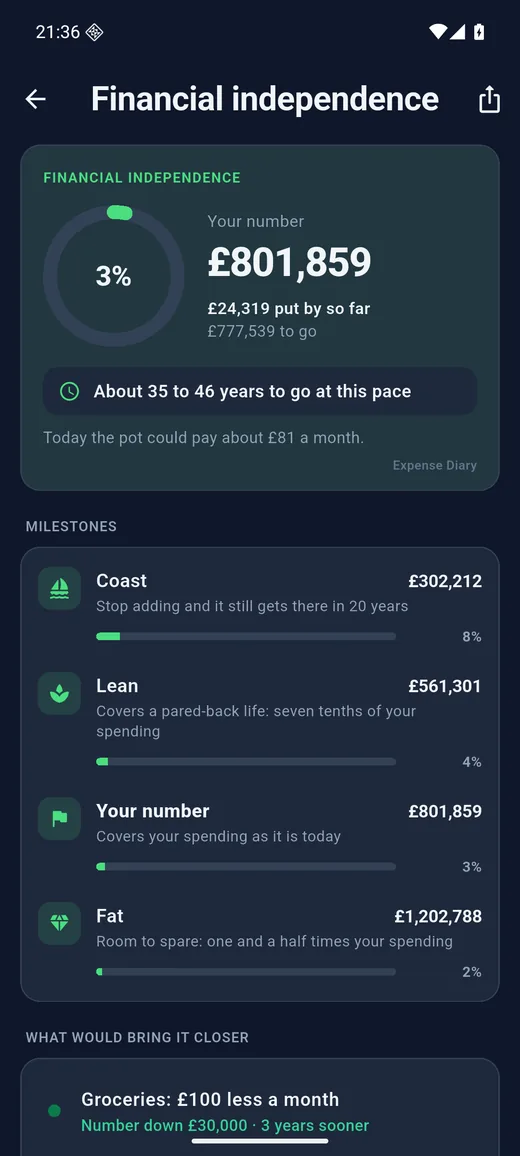
The number you would need for your spending to be covered for good, how far along you are, and roughly how many years to go at this pace, as a range rather than a false precision. Milestones on the way, the levers from your own categories that would bring it closer, and every figure editable. Share it as a picture.
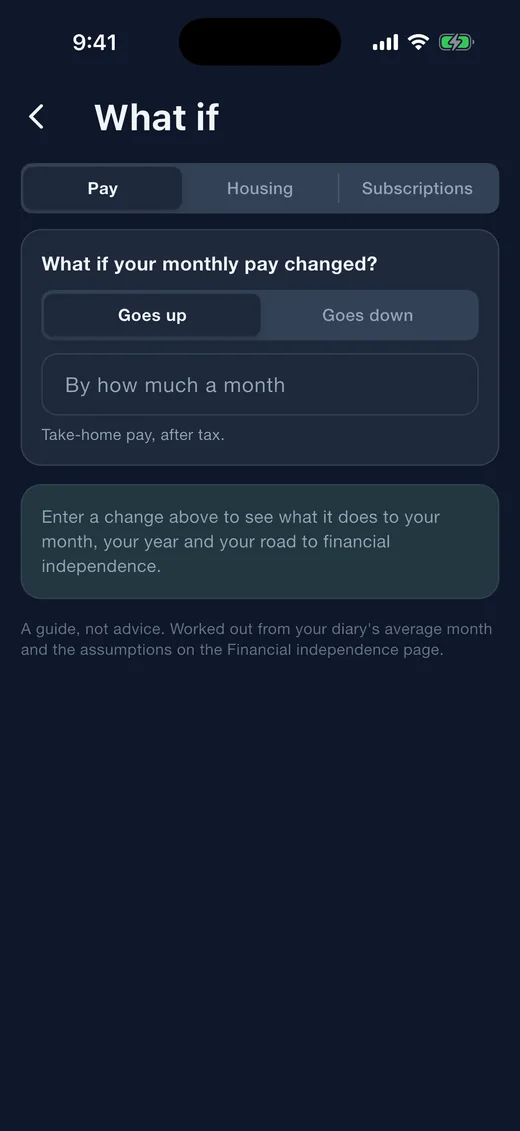
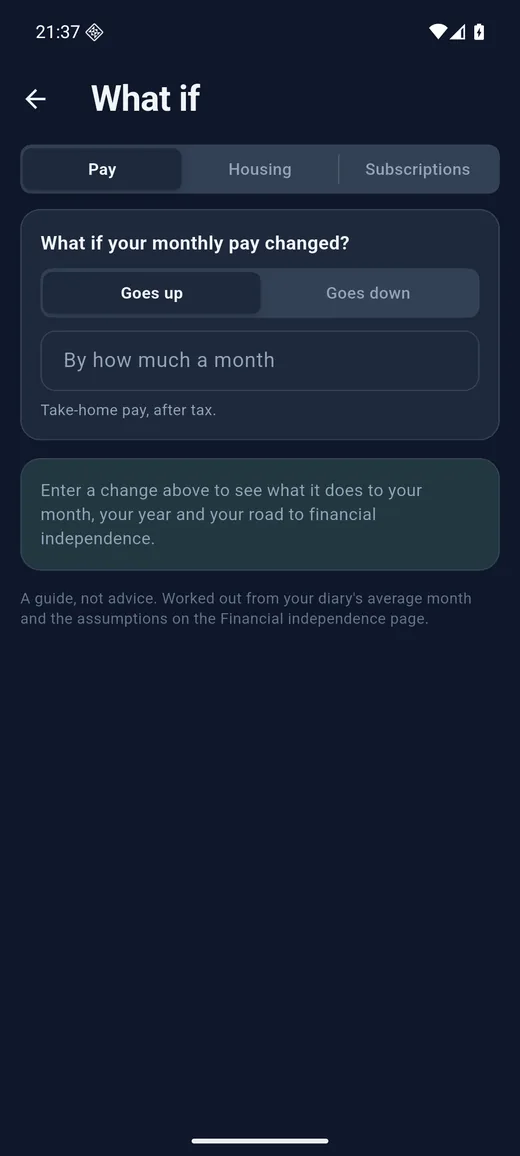
What if
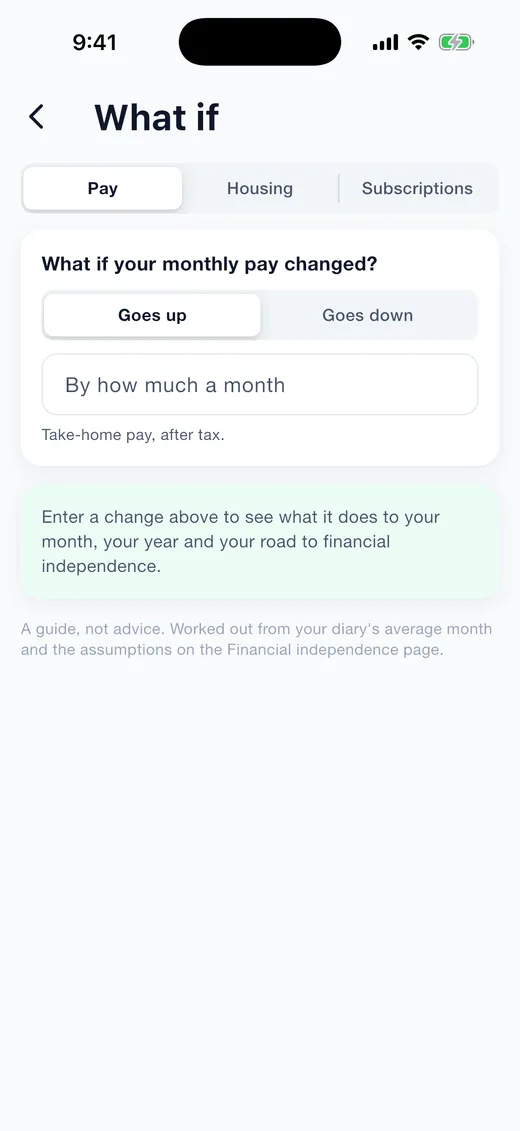
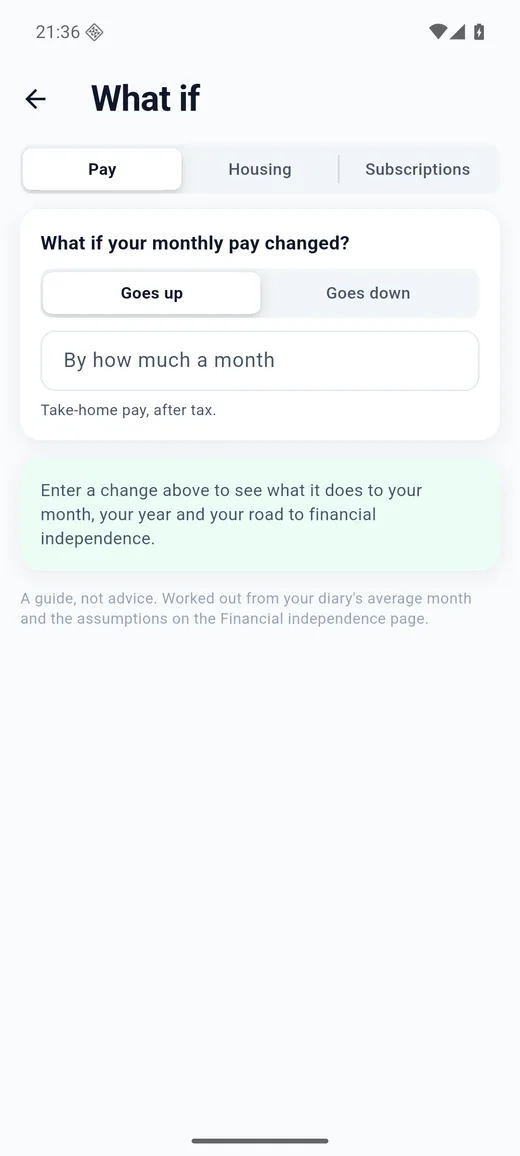
Try a change before you make it: a pay rise or cut, a move with a different rent, or a cancelled subscription. The page shows what it does to your year, your savings rate and your road to financial independence.
Diary search
Search the diary in plain words: a merchant, an amount, a day or a month, in English, German, Dutch or French. Show one month or everything, and share exactly what is on screen.
Backups
Pick a folder once, on iCloud Drive, Google Drive, Dropbox, OneDrive or any storage your phone can show, and the app keeps a backup there automatically, receipt photos included. Or back up to a file you keep anywhere. iPhone users can also turn on iCloud backup; Android backs the diary up with the rest of your app data. A backup made on one platform restores on the other, and the app reminds you when you have gone a month without one.
Home screen and shortcuts
A widget on iPhone and Android with safe to spend, days to payday and the streak; quick actions on the app icon to log an expense or income, scan a receipt or mark a no-spend day; hold a tab for its shortcuts; keyboard shortcuts on iPad. Each can be switched off in Settings.
Privacy and price
No account, no bank connection, no server. The free version shows one small banner above the tab bar and a full-screen advert on the way into Net worth at most once an hour; an optional yearly subscription removes both and unlocks PDF and CSV export. Every tracking feature is free. App lock with Face ID, Touch ID or fingerprint; seven accent colours, light and dark themes and a compact mode; iPad at full width.
On iPhone
iPhone 17 Pro, demo data
On iPhone, dark mode
The same screens with the Dark theme
On Android
Pixel-class phone, demo data
On Android, dark mode
The same screens with the Dark theme
How to use Expense Diary
Every screen and switch, in the order you meet them.
First run
Three screens and you are in. Nothing is uploaded and no account is created.
- The first screen explains that everything stays on the phone. Tap Continue.
- Enter the balance of your everyday account right now, or the amount you owe on a credit card. More accounts, assets and debts can be added later in Settings.
- Pick your next payday and how often it comes: monthly, every four weeks, weekly or twice a month. A preview shows the days to payday and the daily figure.
- Have a backup? On this screen you can restore a backup file, and on iPhone the app offers to restore the iCloud copy from a previous phone before anything else happens.
The five tabs
- Today: the safe-to-spend figure and everything due right now.
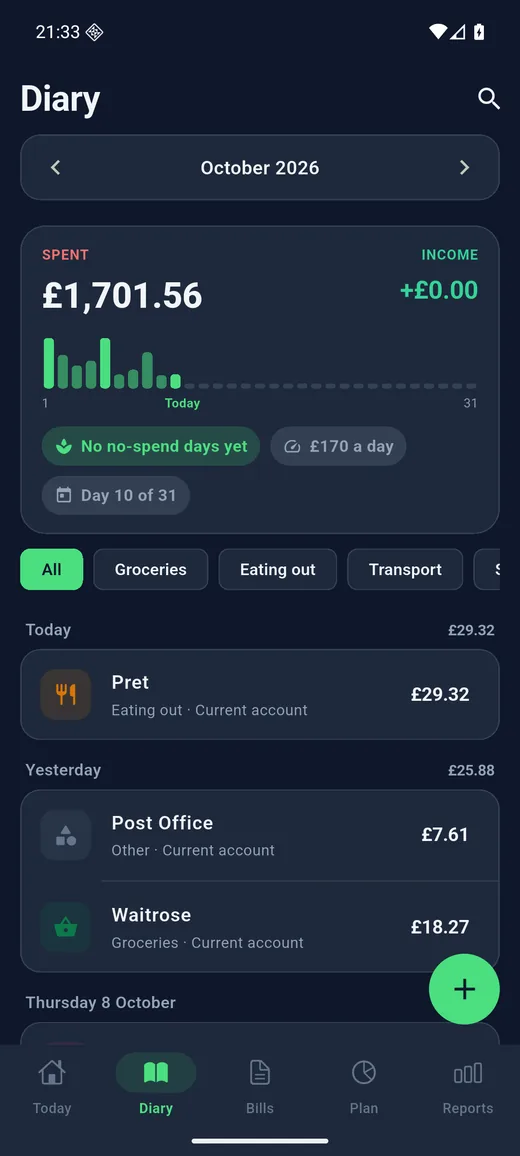
- Diary: every entry, by day and month, with search.
- Bills: the monthly bills board and the subscription view.
- Plan: budgets, savings jars and the debt planner.
- Reports: this month, trends, net worth, financial independence, what if, statements and the year card.
- The gear in the top right of Today opens Settings. The green plus button on every tab logs a new entry.
Today
- The big number is what is safe to spend today: money in your spending accounts, minus bills still due before payday, minus this month's planned jar contributions if you count them, minus your buffer, spread over the days to payday. Tap the small (i) to see each part of that sum.
- Under the figure: how much is safe until payday, the days left, and how much is already held back for bills. Paying a bill does not change the daily figure because it was already held back.
- The bar shows where you are in the pay cycle: day 9 of 31, next payday on the 28th.
- Three tiles: bills due this week, budget used this month, and the current no-spend streak.
- Today's entries follow. Below them a switch marks today as a no-spend day; it is greyed out if you have already logged an expense.
- Due this week lists bills with a paid switch on each; tick one and the payment is recorded in the diary from the account you chose for that bill.
- Where it went is this month's spending by category, with a link to the full report.
- If nothing is set up yet, Today shows prompts to add your bills, set a budget and start a jar. If you have not backed up for a month, a card reminds you.
Logging an entry
- Tap the green plus. The amount keypad opens first; type the amount and tap Done.
- Choose Expense, Income or Transfer at the top. A transfer moves money between two of your accounts and counts as neither spending nor income.
- Tap a category chip. Recent ones are first. Categories you have archived no longer appear.
- Usual amounts: under the keypad, chips offer the amounts you use most often in that category, one tap each.
- Merchant: start typing and the app suggests names you have used before, and files the entry under the category you used last time for that merchant. A merchant rule ("anything containing TFL is Transport") overrides that.
- Account: which account the money comes from. Date defaults to today; tap it to change. Note is optional.
- Receipt photo: take a photo or choose one from the library. It stays on the phone, attached to the entry, and can be viewed later from the entry or from Reports > Receipt photos.
- Split into several categories: for a supermarket shop that is half groceries, half household. The parts must add up to the total; the sheet shows what is still to allocate. If the entry came from a scanned receipt, tap a line item to drop it into the highlighted part.
- Save. A message confirms it with an Undo link.
- Long-press an entry in the Diary to log it again today with one tap, or to edit it. Delete from the edit sheet; a message with Undo appears for a few seconds.
Scanning a receipt
- In the entry sheet tap Scan receipt, then take a photo or pick one. Reading happens on the phone; the photo is never uploaded.
- A review sheet shows the shop, the date and the total that were read, plus the other figures found on the receipt and everything that was read, so you can check.
- Long receipt? Tap Add another part and photograph the rest; the amount and date are taken from all parts.
- Tap Use these details. The entry is filled in with the photo attached and the line items ready for a split. Check the amount and date before saving.
- If no total could be read, the photo is still attached and you type the amount.
Scanning a bank or card statement
- Open Settings > Scan a statement, or tap the tip on Today. Photograph the page with the transaction table, or choose a photo. Tilted photos and merged headers are fine.
- Every row is read into a list: date, description, amount, and an In or Out badge. Nothing is added yet.
- Tick the rows you want. Tap a row to edit its kind, description, amount, date or category. Rows the reader was unsure about carry a Check badge; if the amounts do not add up to the balance column, a warning appears. Swap In and Out flips every row at once.
- Rows that are already in your diary, same amount and direction within three days, are greyed out as duplicates. A card also lists diary entries for those dates that are not on the statement, for example cash or a typo, so you can check them.
- Scan another page to add the next page of the same statement. Then tap Add N selected.
- Report a misread sends the rows as read to support with account numbers, sort codes, cards, postcodes and e-mail addresses masked and everything above the table removed; you see the text before it goes. If reading fails entirely, Send error report sends the error text only.
Diary
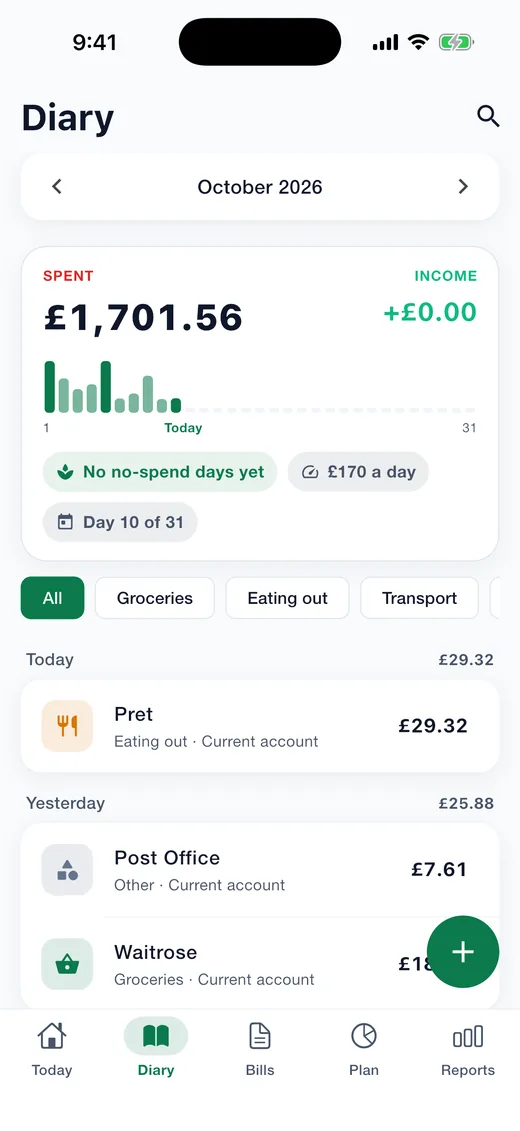
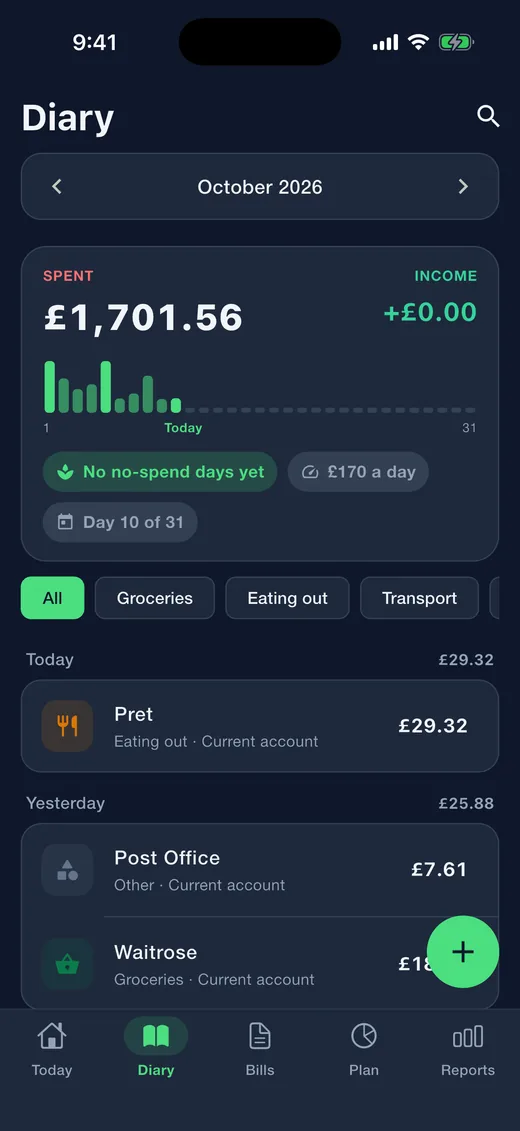
- Entries are grouped by day with a total per day. The month bar at the top has arrows, and tapping the month name opens a month and year picker.
- Search accepts plain words: a merchant, a note, an amount such as 42.18, a day such as 12 Sep, or a phrase such as last month. It understands the same in German, Dutch and French.
- Tap All months to search across everything instead of the current month, and Back to return.
- Filter by category with the chips at the top.
- Share these entries as CSV sends exactly what is on screen, filtered or searched, as a spreadsheet file. Exports are part of the subscription.
- Tap an entry to edit it. Long-press for Log again today, Edit, or See everything at this shop, which opens a page for that merchant: total, usual amount and the last twelve months.
- The month card at the top shows spent and income, a bar for every day of the month, the daily average and the day of the month.
Bills
- The board shows the month as a calendar. Each date with a bill is coloured: green for paid, orange for due soon, red for overdue, a ring for upcoming. Tap a day to see what is due; tap it again to show the whole month.
- Below the calendar bills are listed as Overdue, Due soon, Upcoming and Paid, each with a paid switch. Marking one paid records the payment in the diary from the account you chose, unless you set the bill not to record a payment.
- Add bill: name, amount, how often (monthly on a day, twice a month, quarterly, every N days, weeks, months or years, or the last day of the month), next due date, the account it is paid from, a group, a reminder on the day, some days before or a week before, and notes.
- Paid automatically: for a direct debit or standing order. The bill is ticked off for you on the due date.
- Counts for safe to spend: on by default, so an unpaid bill is held back from the daily figure until it is paid.
- Recent payments are listed at the bottom of a bill. Stop tracking archives it: past payments stay in the diary, future months no longer show it, and Undo appears for a moment.
- Looks like a monthly bill: when you have typed the same payment around the same day for several months, a card offers to add it as a bill or dismiss the suggestion.
- The first time you add a bill the app asks whether to remind you before bills are due; you can change that in Settings > Reminders.
Subscriptions
- Flip the switch under the month bar from This month to Subscriptions.
- The top shows the total a year, the monthly equivalent and how many are active, then the share per group: entertainment, software and cloud, health and fitness, shopping and delivery, news and learning, other.
- Each subscription shows how often it renews and the next date. One that has not been marked paid for a while is flagged, which is usually a sign it has lapsed or was cancelled.
- Add subscription works like Add bill; choose a group so the breakdown is right.
Plan: budgets
- Set one monthly limit for everyday spending across all categories, or a budget per category, or both. Bills ticked off on the Bills tab do not count against the monthly limit.
- When you add a budget the app suggests an amount from your recent months; tap Use to accept it.
- Carry over what is left: money you did not spend this month is added to next month's limit.
- Each budget shows spent of limit, the percentage, what is left and the days left, and whether you are under or over pace for this point in the month, with roughly how much a day remains.
- Tap a budget to change it or remove it. Removing a budget does not touch your entries.
Plan: jars
- A jar is something you are saving for. Give it a name, a target and optionally a date; the date sets the monthly amount that keeps you on track.
- Kept in: link the jar to a savings account, so adding money records a transfer into that account, or choose Just count it to track the jar without touching any account. Plan shows where all your jar money sits, account by account.
- Money in a jar is kept out of safe to spend automatically, so it is protected. Pay from a jar from the entry sheet when you spend on the thing you saved for; Take out moves money back to your everyday account with a note of when and why.
- Add on every payday: set an amount and it goes into the jar by itself on each payday, with the jar showing how many paydays until the target.
- Add money whenever you can. Each jar shows the amount saved, the target, what is left, the percentage, and a projection: at your recent pace you reach it around a date, early, on time or late, with the monthly amount that would get you there.
- Contributions are listed under the jar; hold one to remove it, which also removes its transfer from the diary.
- Archive a finished jar; the money stays in its account.
Plan: debt planner
- Add a loan, mortgage or credit card under Settings > Accounts > Debts, then tap it on the Net worth report.
- Enter the interest rate and your monthly payment. The planner shows when it is paid off and the total interest, and warns if the payment does not even cover the interest.
- Drag the extra-each-month slider to see how much sooner it clears and how much interest you save.
- It is a guide, not advice; your lender's figures take priority.
Reports
- Month: spending by category with the change against last month, income against spending and the net, top merchants with entry counts, and the no-spend days.
- Trends: the last twelve months as bars with the average, this month so far against your average, and this month against last by category.
- Financial independence: open it from the Net worth report. Your number, how far along you are, years to go as a range, milestones as stages, and levers from your own categories. Tap any assumption to change it and everything recalculates.
- What if: a pay change, a move or a cancelled subscription, and what each does to your year, your savings rate and your road to independence.
- Month in review: a short read on how the month went, from Reports or from a card on Today in the first week of the month. Share it as a picture.
- Net worth: what you own minus what you owe, the change since last month and over the year. Everyday accounts update themselves from the diary; property, cars, investments and loans use the value you last entered. Tap Update values to enter new ones, and tap a debt to plan paying it off.
- Statements: any month, this year, last year or a date range you choose, previewed exactly as the PDF looks. Export as PDF or CSV with the subscription.
- Year in numbers: spent, income, best streak, biggest category and lightest month, shareable as an image.
- Receipt photos: every receipt you attached, by month, searchable by word, amount, day or month.
No-spend streak
- A day with nothing spent counts automatically. Bills and transfers are ignored so a rent payment does not break the chain; both can be changed in Settings.
- Mark today as a no-spend day yourself on Today, or from the quick action on the app icon. You cannot mark a day on which you have logged an expense.
- The tile on Today shows the current chain; the year card shows your best.
- The optional streak nudge sends a reminder in the evening if nothing has been logged or marked.
Reminders
- Bill reminders: a few days before each bill and when one is overdue. The notification has a Mark paid button, so you can tick it off without opening the app.
- Payday reminder: the evening before payday.
- Budget alerts: when a budget passes 80% and when it goes over.
- Streak nudge: at a time you choose, if nothing is logged or marked for today.
- Support replies also arrive as notifications. All of these are scheduled on the phone; nothing is sent from a server.
Settings: money and accounts
- Currency, and the day your month starts, which budgets and reports follow. Payday with its cadence and a live preview. The safe-to-spend buffer, money you always keep untouched.
- Accounts are in three groups: spending accounts, which count for safe to spend and update themselves from the diary; assets you value yourself such as property, a car or investments; and debts such as a loan, a mortgage or a credit card. Credit cards take a statement day and a payment due day.
- Archive an account you no longer use: its entries stay, it disappears from pickers and totals.
- Categories: add your own for expenses and income, archive ones you do not use. Merchant rules file anything containing a word under a category, and apply when you type, scan or import.
Settings: phone and privacy
- Home screen: the widget with safe to spend, days to payday and your streak; the quick actions on the app icon; and the number on the app icon, which shows today's safe-to-spend amount as a badge. Each has its own switch.
- Appearance: Auto follows the phone, or choose Light or Dark; pick one of seven accent colours; Compact mode fits more on the screen. Vibration gives a light tap when you log, tick or switch.
- App lock: unlock with Face ID, Touch ID or the passcode on iPhone, with fingerprint, face unlock or the screen lock on Android. The phone does the checking.
- Ads: choose personalised or non-personalised advertising at any time. Nothing about your money is shared.
Settings: data, backups and moving phones
- iPhone: turn on Back up to iCloud and a copy goes into your own iCloud Drive whenever data changes. Android backs the app up with your other app data through your Google account, with nothing to set up.
- Back up to a folder: pick a folder once in Files or the Android picker, on iCloud Drive, Google Drive, Dropbox, OneDrive, a server or the phone itself. The app then writes one backup file there whenever your data changes and when you leave the app, receipt photos included. Tap the row again to back up now, restore from that folder, choose another folder or stop.
- Back up to file writes one file you can keep anywhere. It contains entries, accounts, bills, budgets, jars, settings and receipt photos.
- Restore from file replaces everything on the phone with that backup, photos included, after you type a confirmation code. A backup made on iPhone restores on Android and the other way round, and older backups without photos still work.
- Import from a file reads a bank or card statement CSV or another app's export. You map the columns, choose day-first or month-first dates, flip amounts that are the wrong way round, and skip rows already in the diary. The app remembers the layout for next time.
- Export CSV writes every entry for a spreadsheet, with the subscription.
- Reset app deletes everything on the phone after a confirmation code. A copy of that day's data is kept on the phone and can be restored from Settings or the welcome screen, and the iCloud backup is not touched.
Widget, quick actions and Siri
- The home-screen widget shows safe to spend today, days to payday and the streak, and refreshes whenever the figures change. Small and medium sizes on iPhone; on Android, one widget with a button to log an expense.
- Long-press the app icon for four actions: log an expense, log income, scan a receipt, mark today no-spend.
- On iPhone, the same actions are available to Siri and the Shortcuts app.
Help and support
- Settings > Help & support opens a ticket without an account. You get a ticket code; replies arrive inside the app, usually within one working day, and as a notification.
- Reinstalled or changed phone? Enter the ticket code to pick a conversation up again.
- Each message goes with the app version, platform, system version, your currency and whether you are ad-free, and nothing else.
Ads and the subscription
- The free version shows one small banner above the tab bar and a full-screen advert on the way into the Net worth report, at most once an hour. Never between entries, never in the way of logging. Rewarded adverts in Settings are optional: watch one for a short ad-free period or temporary access to exports.
- The yearly subscription removes the banner and unlocks the statement PDF and CSV exports. Everything else, unlimited entries, accounts, bills, budgets, jars, reports and backups, is free.
- Payment is handled by the App Store or Google Play, where you can cancel any time. Restore purchase brings the subscription back on a new phone.
At a glance
- Platforms
- iPhone and iPad (iOS 15 or later), Android 8 or later
- Price
- Free with adverts; optional US$12 a year removes them and adds PDF and CSV export
- Countries
- 18 with published rates, plus a custom rate for anywhere else
- Languages
- English, German, Dutch, French
- Your data
- On your device only; backups are files you control
- Status
- On Google Play
In short
Get Expense Diary
Free, with everything kept on your phone.
Soon Scan with your phone's camera to get it on your phone Expense Diary in three minutes
Three minutes, every screen.
Other brands
-
FinToolSuite
Personal finance and investment calculators that remove the guesswork.
-
FireMathLab
FIRE and retirement-date calculators that show their working.
-
BuildMetricLab
Construction and engineering calculators for faster, sharper estimates.
-
FitMetricLab
Fitness and health metric tools that turn data into progress.
-
PrintablesWorld
Printable kits, planners, puzzles, and smart PDF utilities.
-
RunTheTests
Free browser-based device, network, and privacy tests.
-
MotorMath
Pure-math car calculators for total cost of ownership and EV comparison.
-
PlainEstimate
Estimates and invoices that stay on your own machine.
-
Plain Estimate: Invoice Maker
Quote at the door, get it signed on the spot, invoice it later. No account, nothing capped, and your documents stay on your phone.
Get Expense Diary
Free, with everything kept on your phone.
Soon
Scan to get it
on your phone